Export data
You export types and objects from Toolbox → Exporter or directly from the type and object lists. Exports serve as backups, for migrating between installations, for reporting, and as the starting point for imports (Import data).
Exporting is gated by its own rights (3.3): base.export.type.* for types and
base.export.object.* for objects and CSV templates. See Rights.
Exported files are named <timestamp>_<kind>_<subject>[_readable].<extension> (3.3),
for example 2026_07_21-13_05_00_objects_router.csv or
2026_07_21-13_05_00_types_47.json, so they sort chronologically and can be identified
without opening them.
Export types
Types are exported as JSON with their full definition. The file has the format the type import expects, so you can move types between installations.
From the Exporter — Toolbox → Exporter → Export Types. Under Select Types pick one or more types (or select all), set Output format to
jsonand click Export.From the type list — Framework → Types. Select types with the checkboxes and click Export. Without a selection, all types are exported.
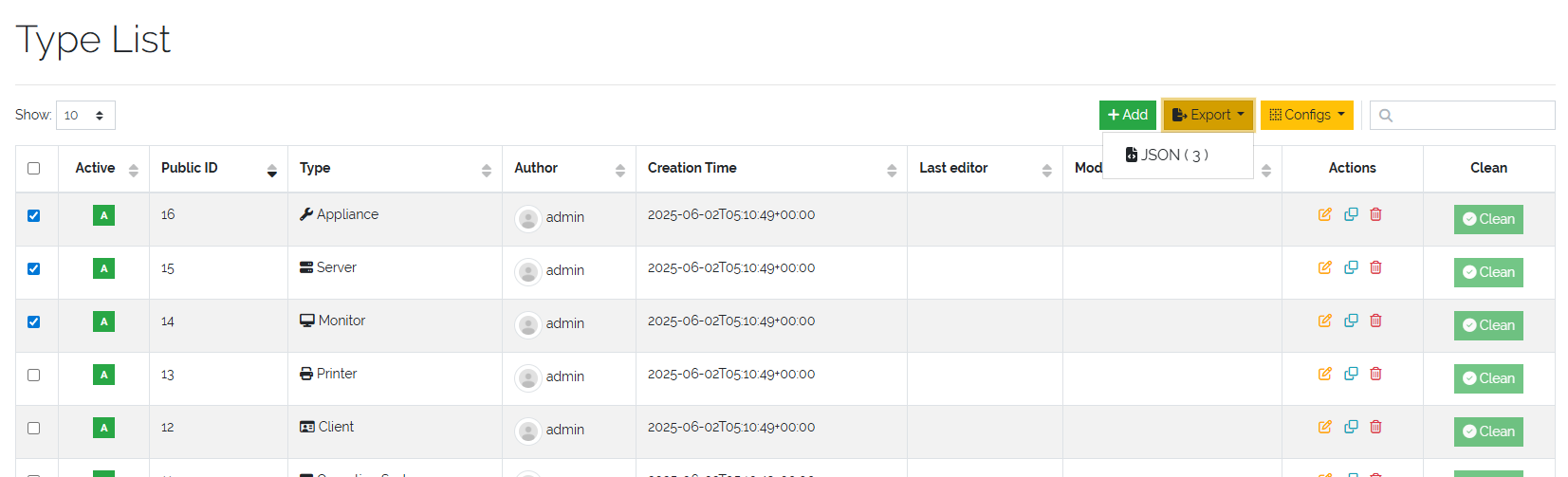
Several types selected for export in the type list.
Export objects
Objects can be exported in these formats:
Format |
Notes |
|---|---|
CSV |
One type per file. Can be re-imported. Supports Human readable. |
XLSX |
Microsoft Excel; one sheet per type. Supports Human readable. |
JSON |
Several types in one file. The format the JSON object import expects. |
XML |
Several types in one document; each object carries only its own type’s fields. |
ZIP |
Packs the export into an archive with one file per type. |
Exports use the field label in column headers (3.3). CSV, XLSX and XML exports include multi data sections (3.3); in CSV an object with several section entries spans several rows — the layout is described in Import data. JSON exports contain them as well.
From the Exporter
Toolbox → Exporter → Export Objects:
Select Object Type.
Choose the Output format.
For CSV and XLSX, optionally tick Human readable (3.3).
Click Export.
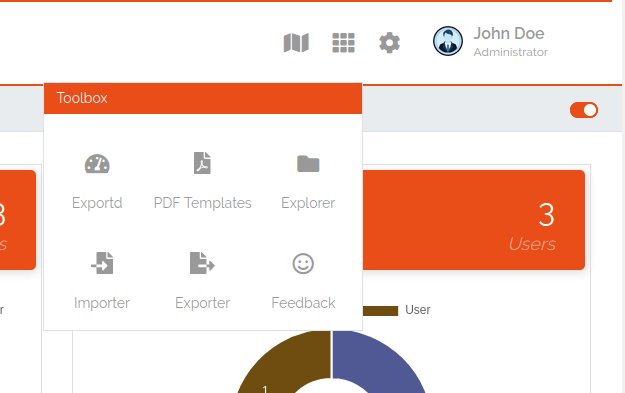
Object export in the Toolbox.
Human readable produces a file for people rather than for re-import: column headers show field labels only, reference fields show the summary line of the referenced object, and location fields show the location name. The UI marks it as a report-only export — the file can’t be used to re-import objects.
From the object list
Open the object list of a single type and click Export. The menu is not available when the list contains several types. Each format offers two modes; the label shows whether all objects or only the selected ones (Export (n)) are exported.
Mode |
Result |
|---|---|
Raw Export |
All fields of the objects in their stored form. Use it to edit data and re-import it with as few formatting issues as possible. |
Customer Export |
Only the columns shown in the table, and with a quick filter only the filtered objects. Values are exported rendered, as you see them — readable, but not meant for re-import. |
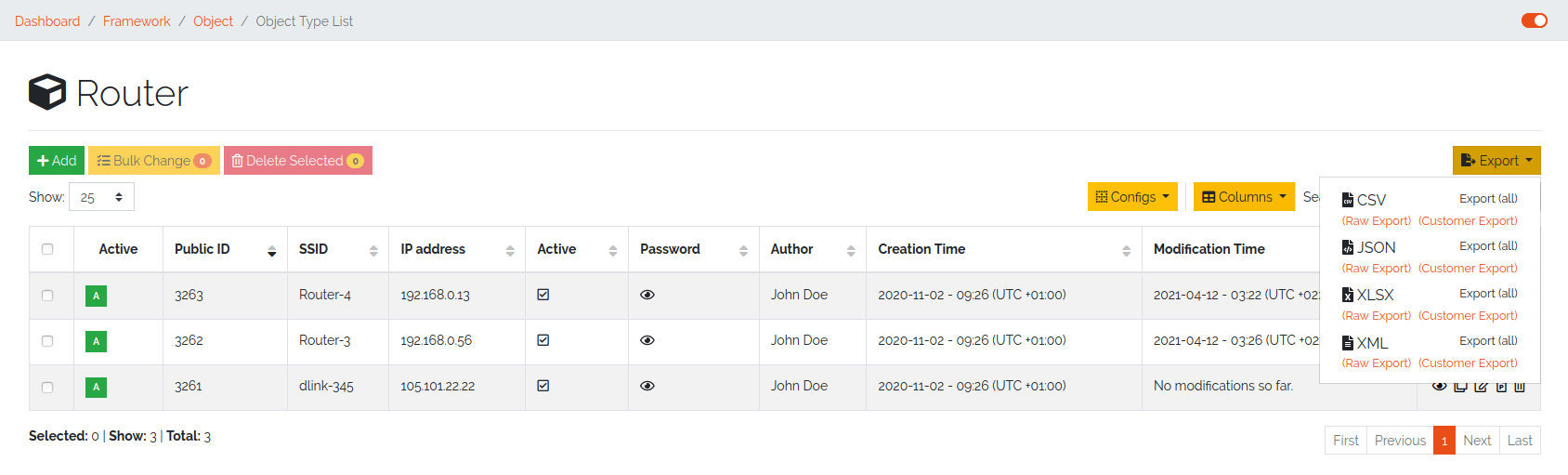
The export menu of an object list.
Export a CSV template
(3.3) A CSV template is an empty file with only the header row of a type — the quickest way to prepare an object import.
Go to Toolbox → Exporter → Export CSV Templates.
Select Object Type and click Export.
Fill in your data below the header row. Keep the headers unchanged.
The page explains the column layout, including multi data sections spread over several rows, and links to the object import (Go to object import). The rules are summarized in Import data.