File Explorer
The File Explorer stores files in a folder tree inside DataGerry — documentation, templates, evidence for ISMS audits, and the files attached to objects. Open it with Toolbox → Explorer.
The file store has no rights of its own: users who may view objects
(base.framework.object.view) can see and download files, users who may edit objects
(base.framework.object.edit) can upload, change and delete them. The Explorer menu
entry is shown with the edit right. See Rights.
The layout
Left — the folder tree. Initially only the root folder exists.
Right — the files of the selected folder with Filename, Size, Date, Type and actions. The footer shows the number of files and the count and size of the selected ones.
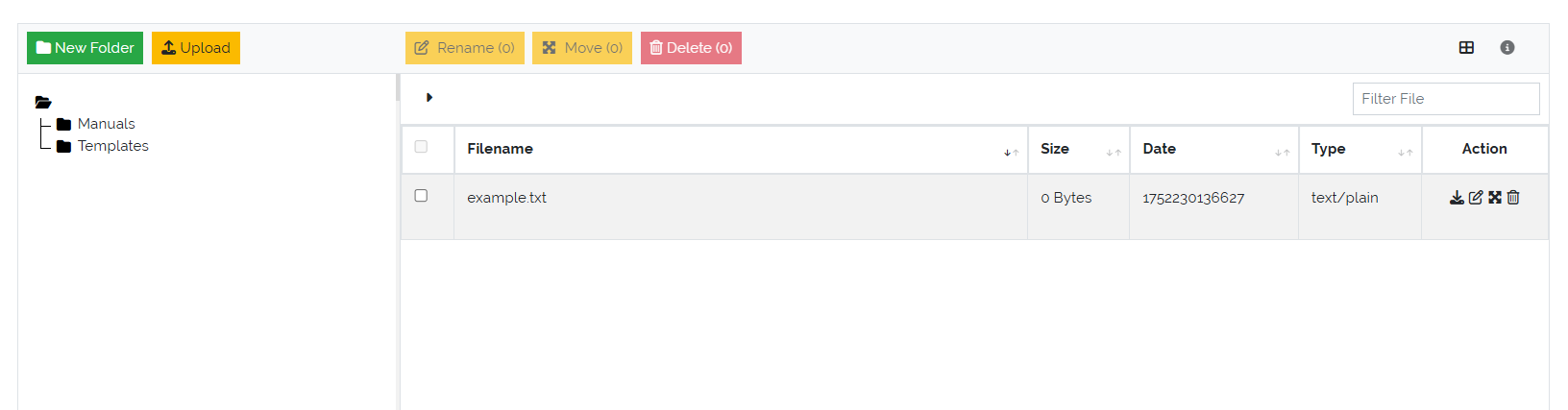
The File Explorer.
Folders and uploads
Above the folder tree:
New Folder — creates a subfolder in the selected folder.
Upload — uploads one or more files into the selected folder.
Names must be unique within a folder.
Work with files and folders
Per file, the action icons Download, Rename, Move to and Delete are available. With the buttons above the list you can Move or Delete several selected files at once; Rename works on one selected file. Folders can be renamed, moved and deleted as well.
With one file selected, the info button above the list shows its details: type, size, path, the object it is attached to (Reference), the user who last modified it and when.
Warning
Deleting a folder also deletes everything in it, including subfolders and files. It can’t be undone.