Assess and treat risks
Licensed feature — on self-hosted installations this needs a license that includes ISMS; in the cloud it is part of the subscription. See Cloud or self-hosted.
A risk assessment evaluates one risk for one object or object group, documents how the risk is treated, re-evaluates it after treatment and records the audit. Control assignments link the controls that implement the treatment. This page assumes a complete ISMS configuration (Configure the ISMS) and the risks and controls you need (Maintain the ISMS catalogues). The scoring is explained in How the ISMS is organised.
Where risk assessments live
Risk assessments are not on the ISMS overview. You reach them from what they belong to:
the detail view of an object — tab Risk Assessments,
the detail view of an object group — tab Risk Assessments,
the detail view of a risk — tab Risk Assessments.
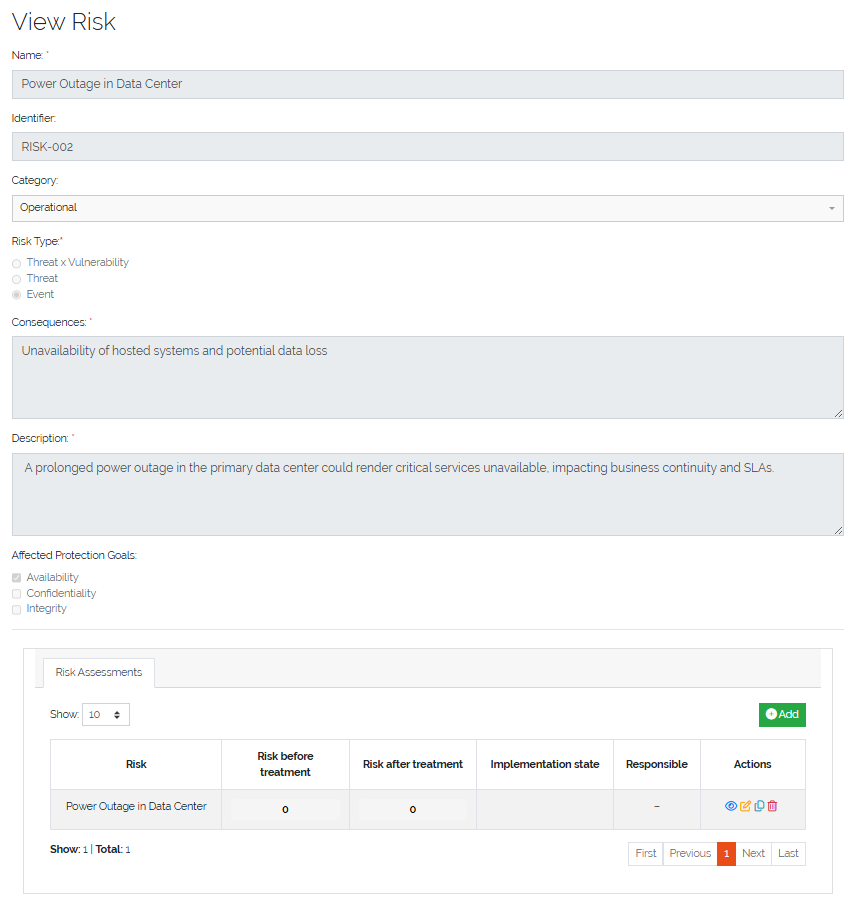
Risk assessments in the detail view of a risk.
Each list has Add to create an assessment and, per row, icons to view, edit, duplicate and delete it.
Create a risk assessment
Click Add in one of the lists above. At the top of the form, select the risk and the object or object group it is assessed for; the one you started from is already set.
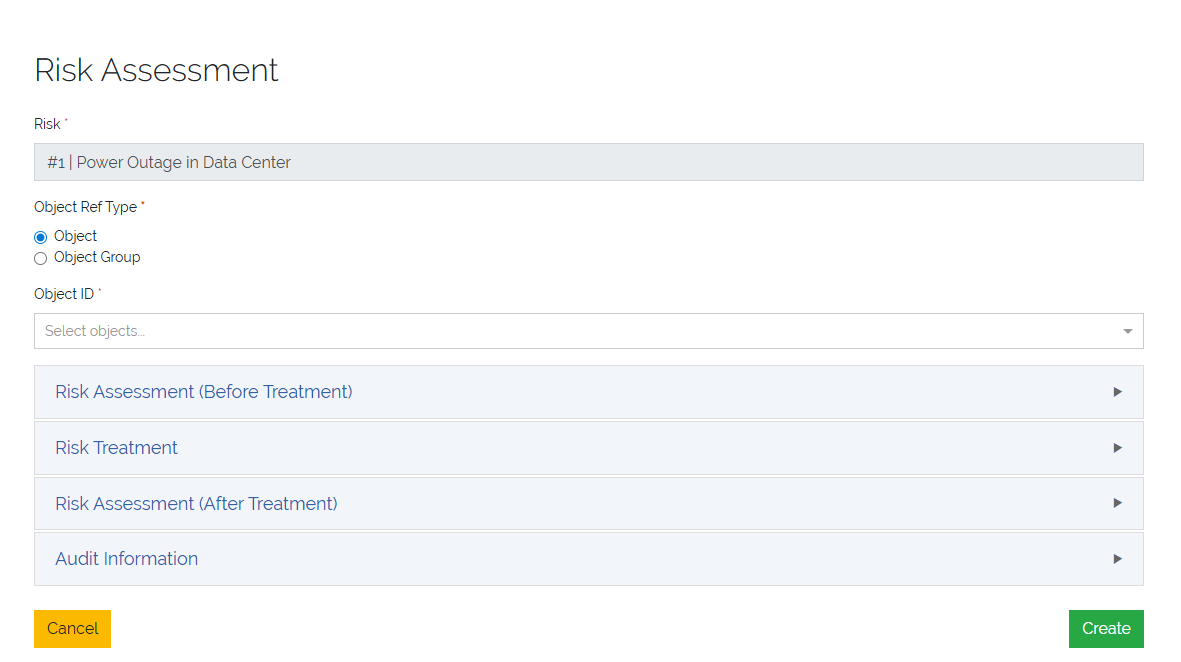
The top of the risk assessment form.
The rest of the form has four sections. Fill them in, then click Create (Update when editing).
Many fields are required, but some — such as costs or the audit details — are typically completed later in the treatment lifecycle. (3.3) If required fields are missing, saving is blocked: the form shows Please fill in all required fields before saving., marks the missing fields and opens the first section that contains one, even if it was collapsed.
Risk assessment (before treatment)
The initial evaluation, before any mitigation.
Field |
Description |
|---|---|
Impacts |
One slider per impact category. Each slider selects one of the configured impact levels; each level has a numeric calculation basis. |
Likelihood |
A single slider that selects the likelihood of the risk scenario. Each level has a numeric calculation basis. |
Calculated Risk |
Calculated automatically as |
Risk Assessor |
The person who performed the assessment, usually a member of the ISMS or risk management team. |
Risk Owner |
The person or person group responsible for the risk. |
Interviewed Persons |
The persons interviewed during the evaluation. Several entries are allowed. |
Date of Assessment |
When the assessment was carried out. |
Additional Information |
Free text for further context, observations or notes. |
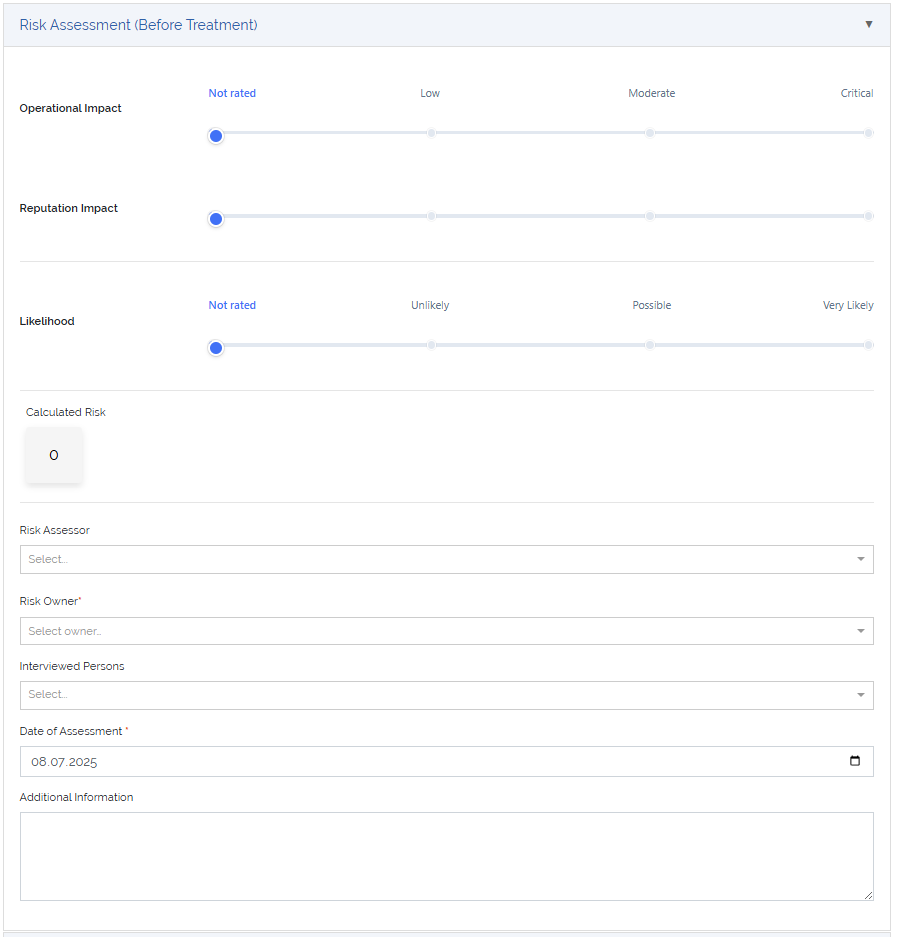
Risk assessment before treatment.
Risk treatment
How the risk is addressed. Depending on the option you choose, provide responsibilities, timelines and resources. Here you also assign controls (see Assign controls).
Field |
Description |
|---|---|
Treatment Option |
Avoid, Accept, Reduce or Transfer/Share — see How the ISMS is organised. |
Responsible Persons |
The person or person group that carries out the treatment. |
Risk Treatment Description |
How the risk will be treated, which measures are applied and how they address it. |
Planned Implementation Date |
The target date for completing the treatment. |
Implementation State |
The current progress, e.g. Open, In Progress, Implemented. |
Finished Implementation Date |
The date the treatment was fully implemented. |
Required Resources |
Personnel, time, tools or other resources needed. |
Cost for Implementation |
The estimated or actual cost, as a number. |
Currency |
The currency of the cost, e.g. EUR, USD. |
Priority |
Low, Medium, High or Very High. |
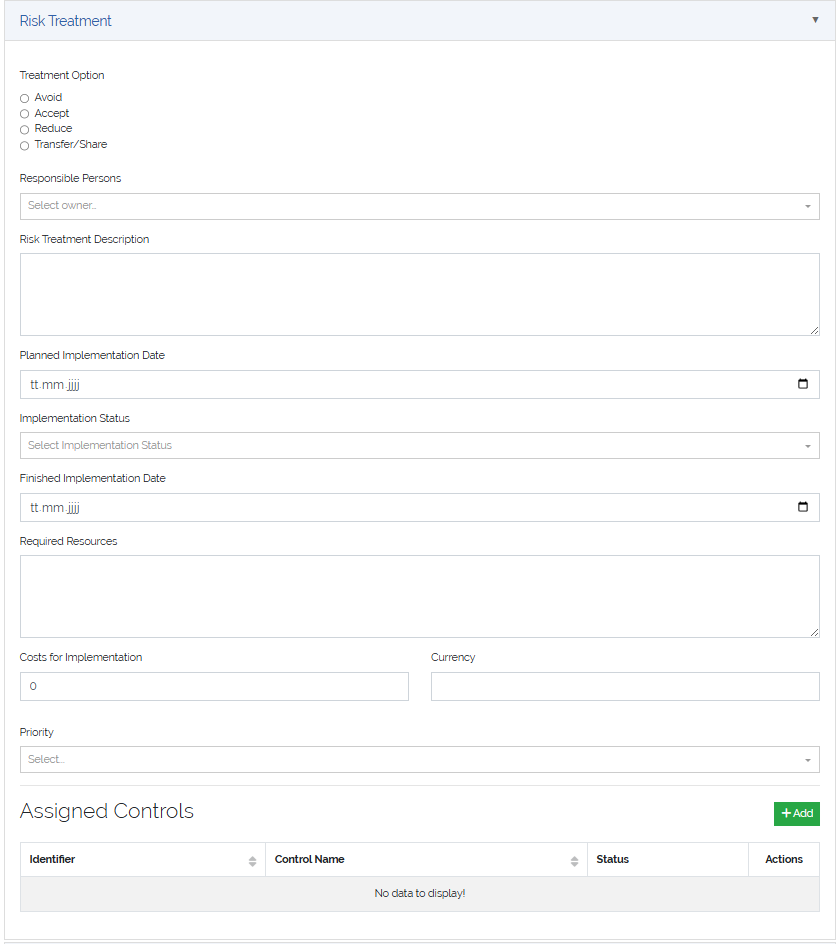
Risk treatment.
The implementation state matters for the reports: the current state risk matrix uses the risk after treatment only for assessments whose state is Implemented.
Risk assessment (after treatment)
The re-evaluation once the treatment is in place. It shows how effective the treatment and the controls are and what residual risk remains.
Field |
Description |
|---|---|
Impacts |
One slider per impact category to re-evaluate the impact level. |
Likelihood |
A single slider to re-evaluate the likelihood, on the same scale as before treatment. |
Calculated Risk |
Recalculated automatically with the same formula. Compare it with the risk before treatment to show the effect of the treatment. |
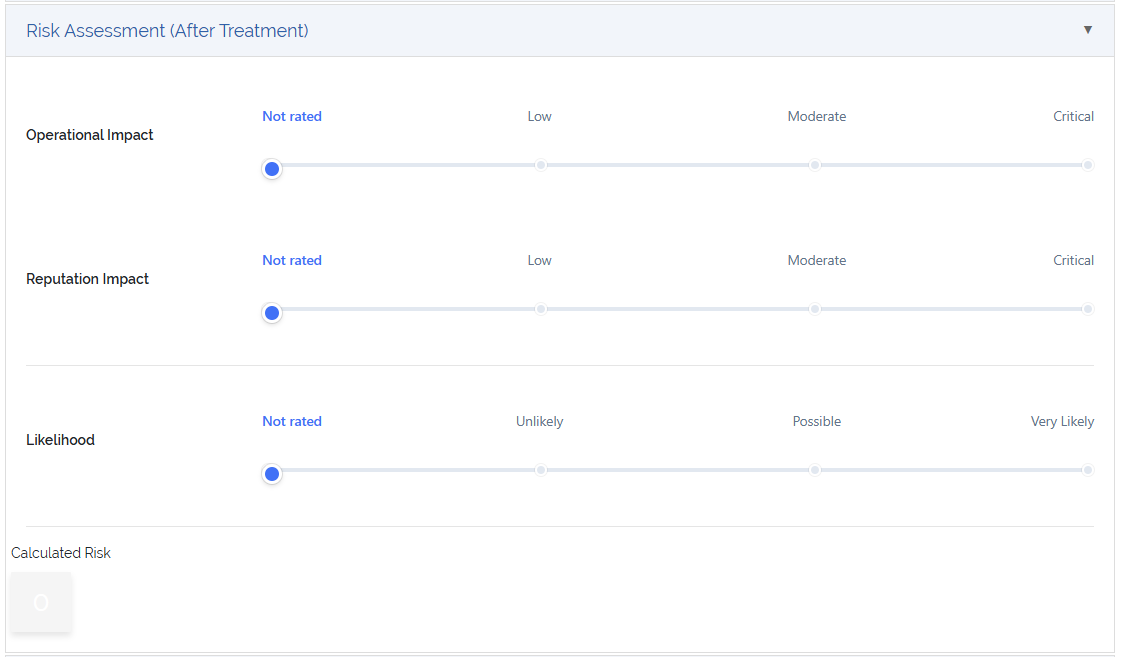
Risk assessment after treatment.
Audit information
Documents the verification of the treatment.
Field |
Description |
|---|---|
Audit Done Date |
The date the audit or review of the implemented treatment was completed. |
Auditor |
The person or person group who performed the audit. |
Audit Result |
Free text: outcome, observations, conclusions — e.g. whether the controls were effective, partially effective or need improvement. |
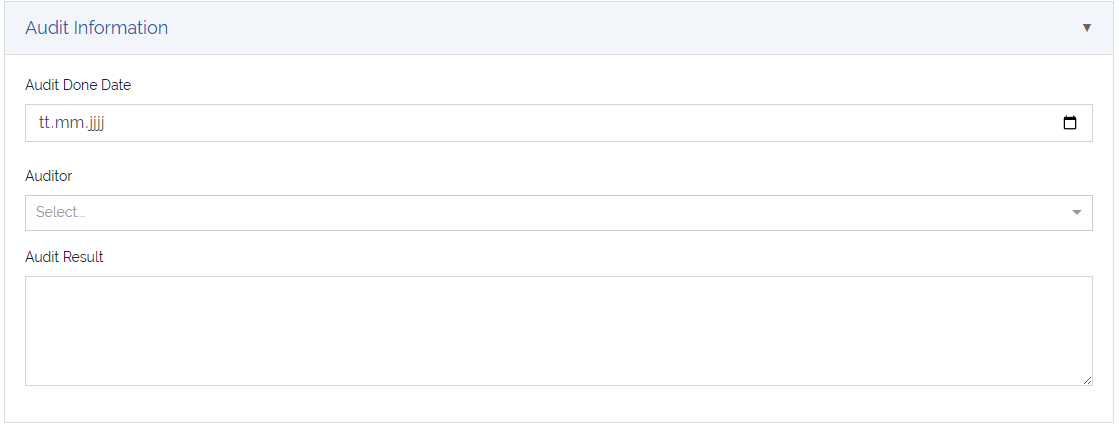
Audit information.
Duplicate a risk assessment
To reuse an assessment, click the duplicate icon in its row. The dialog depends on where you are:
In the list of an object or object group, select one or more other risks; the assessment is copied for each of them, for the same object or group.
In the list of a risk, select one or more other objects or object groups (the same kind as the original); the assessment is copied for each of them, for the same risk.
Check Keep assigned Controls to copy the control assignments as well, then click Duplicate.
Assign controls
A control assignment links a control to a risk assessment and tracks its implementation. It shows which controls are used where, who is responsible, and when they are due — which supports traceability, prioritisation and audits.
There are two ways to assign a control:
In the risk assessment form — in the Risk Treatment section, click Add next to the assigned controls, fill in the dialog and click Add control. The assigned controls are listed in a table below, where you can edit their implementation details.
From the control — open a control’s detail view, go to the Assigned to tab and click Add. Select the risk assessment to assign the control to. The tab also shows where the control is already used.
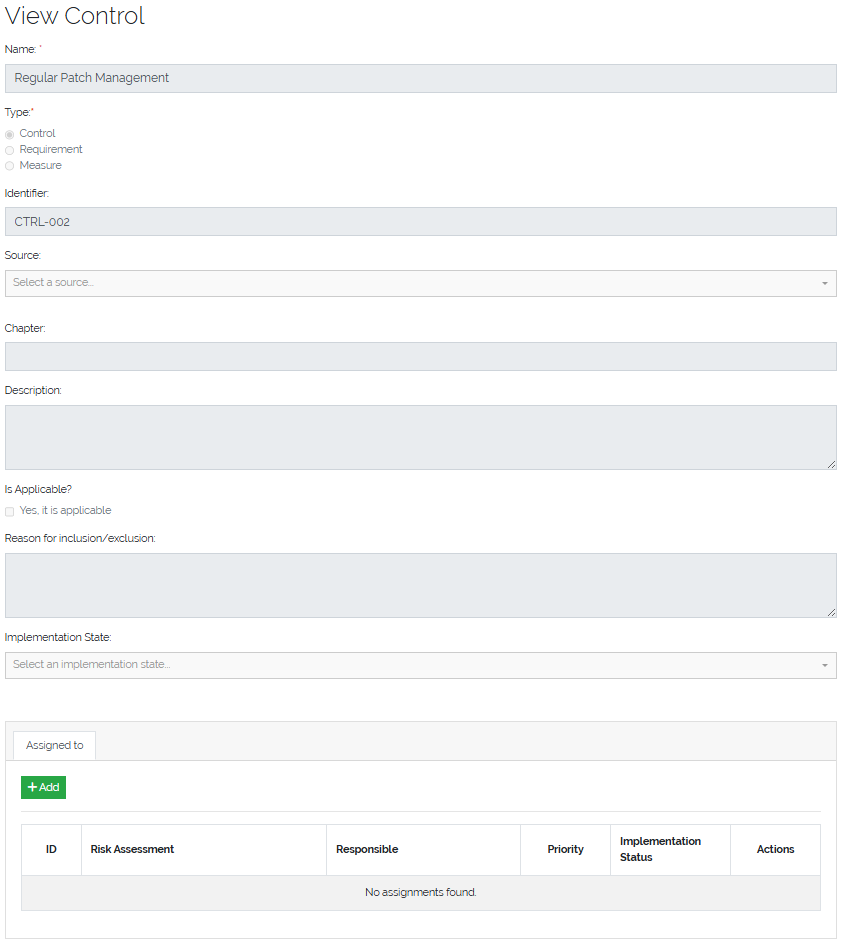
Assigning a control from its detail view.
Field |
Description |
|---|---|
Control |
The control being assigned. Required. |
Risk Assessment |
The risk assessment the control is linked to (set automatically in the risk assessment form). |
Planned Implementation Date |
The date by which the control should be implemented. |
Implementation Status |
The current status, e.g. Planned, In Progress, Implemented, chosen from an extendable list. Required. |
Finished Implementation Date |
The date the implementation was completed. |
Priority |
|
Responsible |
The person or person group responsible for implementing the control. |
A control that is used in a control assignment cannot be deleted. Deleting a risk assessment, or the risk it belongs to, removes its control assignments.
Rights
Risk assessments and control assignments have their own rights (base.isms.riskAssessment.*,
base.isms.controlMeasureAssignment.*). See Rights.