Locations
Locations arrange objects in a tree: a country or city at the top, then sites, rooms, racks and the devices inside them. The tree is shown in the sidebar, so you can find an object by where it is. This page assumes you know how types and objects work (Build types and categories, Work with objects).
Enable locations for a type
An object only appears in the location tree if its type has the special control Location.
Open Framework → Types and click the Edit icon of the type.
On the Content tab, drag Location from Special Controls into a section.
Set the two options of the control and save the type.

The Location control in the type configuration.
Option |
Meaning |
|---|---|
Label |
Required. The name of the location field in the object view. |
Selectable as location |
Whether objects of this type can be the parent of other objects. Clear it for types that never hold anything, for example a Processor that sits in a Server but never contains other objects. |
A type can hold the Location control only once.
You cannot remove the Location field, or a section that contains it, while objects of the type still have a location set. DataGerry shows Cannot delete location field (or Cannot delete section) with a list of the affected objects; remove the location from those objects first.
Place an object
Open an object of the type in edit mode. The Location control adds two fields:
Field |
Meaning |
|---|---|
<Label> |
The parent location. Named after the Label you set on the type. |
Label in location tree |
The name shown for this object in the tree. It is only saved when a parent location is selected in the field above. |

The two location fields on an object.
Click the location field to open the tree selector Select a location (3.3). It replaces the flat dropdown of earlier versions:
Root at the top places the object at the top level (“the object has no parent location”).
Below it, expand the tree and click a location to select it. Search locations… finds a location by name.
Locations whose type is not Selectable as location are greyed out (“This type cannot be selected as a parent location”). The object itself and its own sub-locations are not offered either.
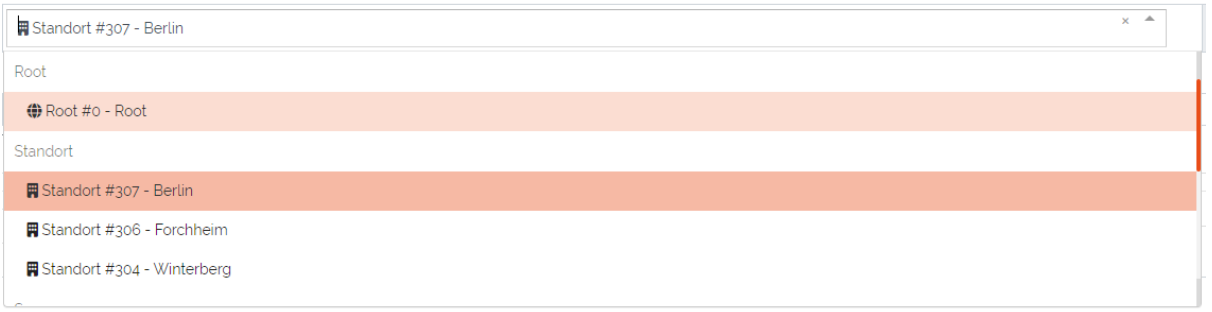
Choosing the parent location.
Save the object. It now appears in the location tree, and the location is stored with the object in the same create, update or copy request (3.3).
Use the location tree
In the sidebar, open Navigation → Locations. Click an entry to open that object. When the sidebar is collapsed, hover the Locations icon to show the tree as a flyout.
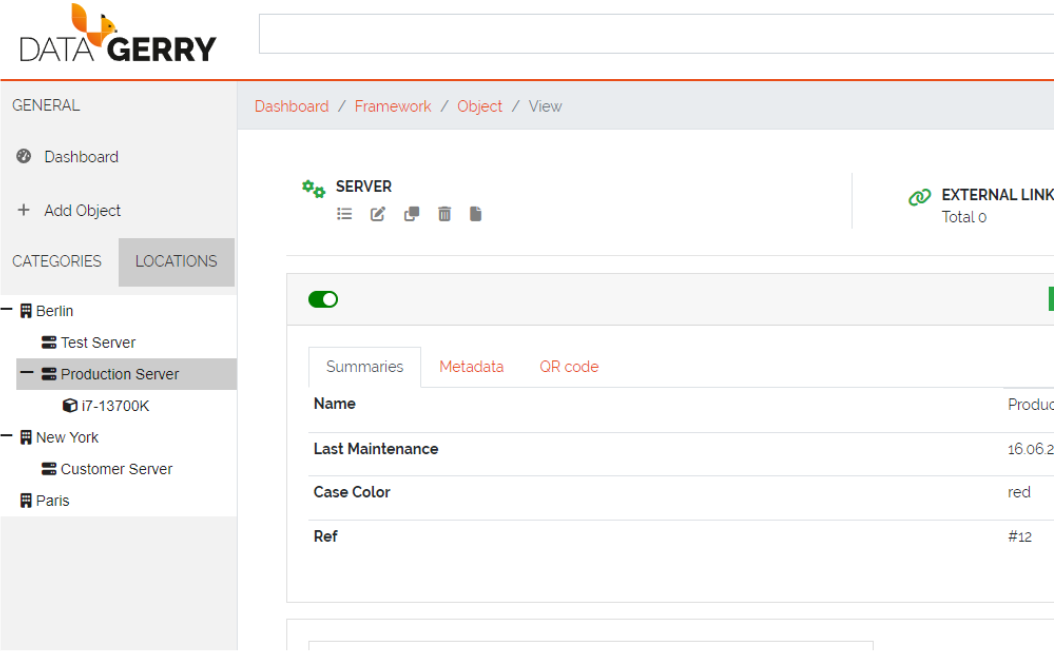
The location tree in the sidebar.
From 3.3 the tree loads lazily: only the top level is fetched at first, and the children of a node are loaded when you expand it. Search locations… above the tree searches all locations, including ones not loaded yet, and opens the tree down to every match.
Reorganise the tree
(3.3) With the right base.framework.location.edit the tree shows an
Organize locations button next to the search box. It opens a dialog in which
you move locations to another parent:
Drag a location onto its new parent, or onto Root (“Top level — drop here to remove the parent location”).
Batch move: tick several locations, then click Move here on the target.
Click Done to close the dialog.
The dialog refuses a drop and says why:
“A location can’t be its own parent”
“Can’t move a location into one of its own sub-locations”
“This location type can’t contain other locations” — the target’s type is not Selectable as location
“Already in this location” / “Already at the top level”
Delete an object with sub-locations
An object whose location is the parent of other locations cannot be deleted on its own; the edit form warns “Only deletable if this object is not a parent of a location”. Move the sub-locations to another parent first (see above) or remove their location.
Objects placed in a rack are also listed in the location tree under the rack — see Racks.
Rights
(3.3) The location tree and its routes are gated by rights:
Right |
Allows |
|---|---|
|
Seeing the Locations tab in the sidebar and reading the tree. |
|
Re-parenting locations with Organize locations. |
The full list of location rights is in Rights.