Users and groups
This page shows how to create users and user groups and how to give a group its rights. It assumes you know how users, groups and rights relate (Users, rights and ACLs). All rights are listed in Rights.
User management is under the Settings menu (gear icon), section User Management: Groups, ACL, Users and Rights.
Users
Cloud and self-hosted
In the cloud, users come from the Service Portal: you invite and remove them there, and they appear in DataGerry after their first login. The Users list shows them, but there is no Add button, no password change, and the user form is read-only. See Users in the cloud. The rest of this section applies to self-hosted installations.
Settings → Users lists all users with their basic details and group. Each row has actions to edit the user, change the password and delete the user.
Create a user
Open Settings → Users and click Add.
Fill in the form and click Save.

The form for a new user.
Field |
Meaning |
|---|---|
Username |
Required. The unique name the user logs in with. |
Optional contact address. |
|
Password |
Required for local users. It must pass the strength check shown below the field. |
Firstname, Lastname |
Optional. Used to display the user. |
Authenticator |
Required. How the user logs in: |
Group |
Required. The user group whose rights the user gets. New users default to User. |
Users authenticated by LDAP usually don’t need to be created by hand: the LDAP provider creates them at their first login (Authentication).
Edit a user
Click the edit icon in the user list. Below the form, the edit page also lists the
object ACLs of the user’s group (see Access control), if you hold
base.framework.type.edit.
To change a password, use the key icon in the user list or Change Password? on the user’s own page. Passwords of LDAP users are managed in the directory and cannot be changed in DataGerry.
Users without base.user-management.user.edit can still change their own first
name, last name, email and picture, but not their user name, group or authenticator.
User restrictions
The initial admin user (public ID 1) cannot be deleted. Its delete icon is hidden.
A user belongs to exactly one group.
User groups
Settings → Groups lists all groups. From the list you can see a group’s users, edit it and delete it.
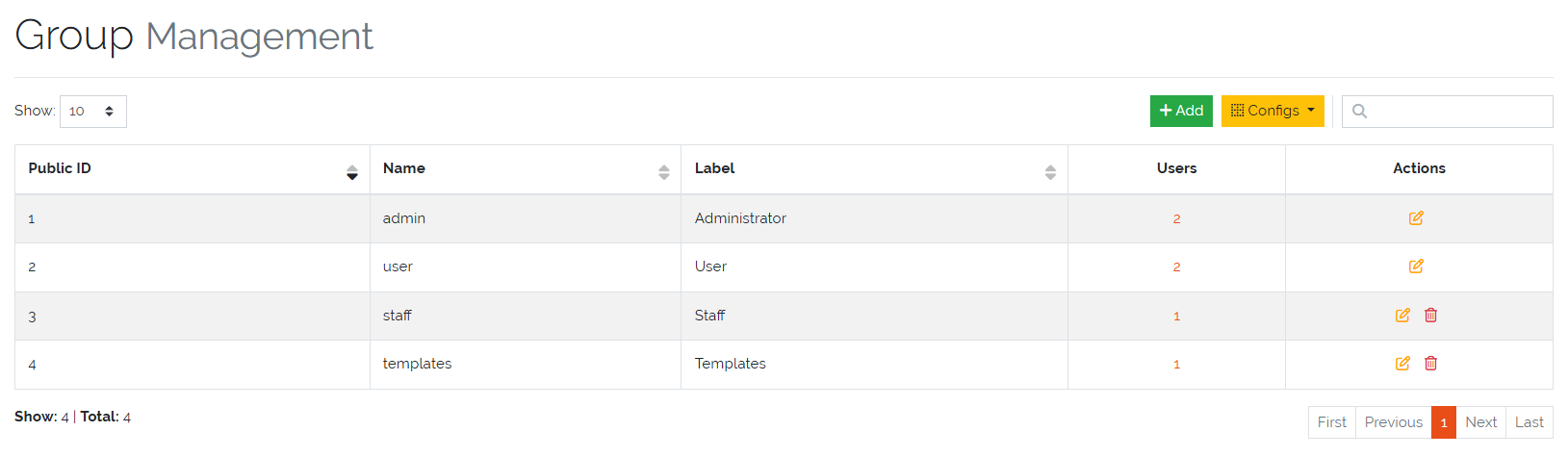
The list of user groups.
The two predefined groups, Administrator and User, cannot be deleted. The
Administrator group always keeps the master right base.*; saving it without
that right is refused (3.3).
Create a group
Open Settings → Groups and click Add.
Enter the fields below and select the group’s rights.
Click Save.
Field |
Meaning |
|---|---|
Name |
Required. The internal identifier of the group. |
Label |
The display name shown in lists and selections. |
Rights |
The system rights the members get. See Choose the rights of a group. |
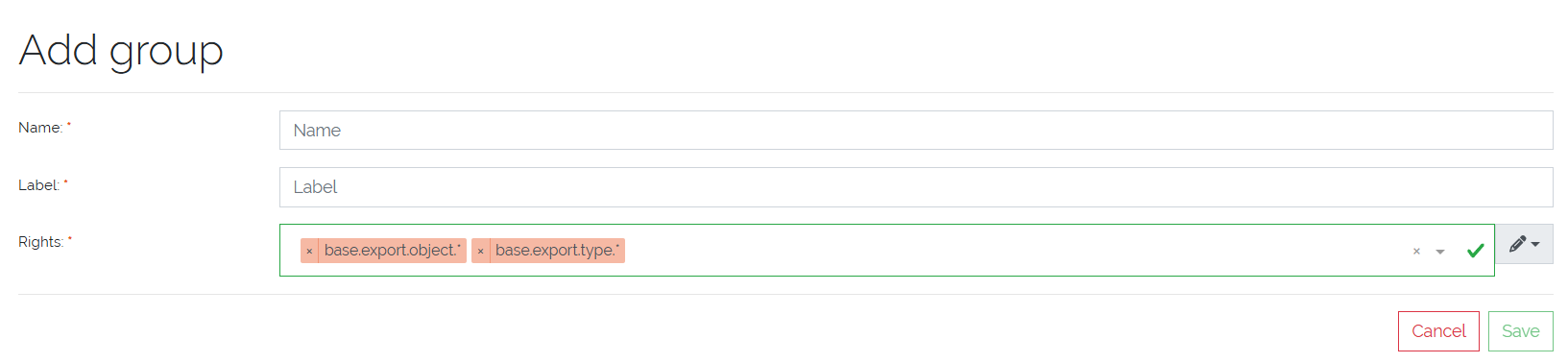
The form for a new user group.
Delete a group
When you delete a group that still has members, choose what happens to them:
Move users to group — the members move to the group you select.
Delete all users in this group — the members are deleted. Not possible if the initial admin user is a member.
The delete is refused while the group is still needed elsewhere:
it is the only group an active type ACL grants access to (the type and its objects would become unreachable for everyone), or
it is the default group or part of a group mapping of the LDAP provider.
If the group appears in a type ACL next to other groups, only its ACL entry is removed.
Choose the rights of a group
Rights are named hierarchically. Granting a right that ends in .* grants every
right below it:
base.*                          all rights
base.framework.*                the whole framework
base.framework.object.*         everything about objects
base.framework.object.view      viewing objects only
base.framework.object.add       adding objects only
Settings → Rights lists every right with its description, its level and the groups that hold it. The full list is also in Rights.
Minimum rights for the web interface
A group needs a few read rights for the web interface to work. The predefined User group is a good starting point; it holds:
base.framework.object.*
base.framework.type.view
base.framework.category.view
base.framework.log.view
base.framework.rack.view
base.framework.relation.view
base.framework.objectRelation.view
base.user-management.user.view
base.user-management.group.view
base.docapi.template.view
For a read-only group, replace base.framework.object.* with
base.framework.object.view.
Some menu entries need specific rights: Users needs base.user-management.user.*,
Groups and Rights need base.user-management.group.view, ACL needs
base.framework.type.view and Object Logs needs base.framework.log.view.