Work with objects
This page covers the daily work with objects: finding them, choosing what the list shows, searching and filtering, deactivating, and changing many objects at once. It assumes the types exist (Build types and categories).
Find objects
Sidebar — under Categories, open a category and click a type. You get the list of all objects of that type.
Search bar — at the top of every page; searches across all types.
Framework → Objects — the list of all objects, regardless of type.
The object list of a type shows the type’s summary fields by default. Above it are Add (new object), Bulk Change, Delete Selected and Export. Add, Bulk Change and Delete Selected only appear when the type is active and you have the rights for them.
Choose the columns
Columns opens a list of all fields of the type. Tick the ones you want to see. Reset returns to the default, the summary fields.
Active and inactive objects
New objects are active. To deactivate an object, open it and use the switch in its header (you need the right to edit objects). An inactive object keeps all its data but is hidden in the web interface.
To see inactive objects, clear the switch Only active objects at the right end of the breadcrumb bar, below the top navigation.

The switch that shows or hides inactive objects.
Search and filter the list
The object list has two tools. Both are run by the server against the database, so they find objects on every page of the list, not only the visible one.
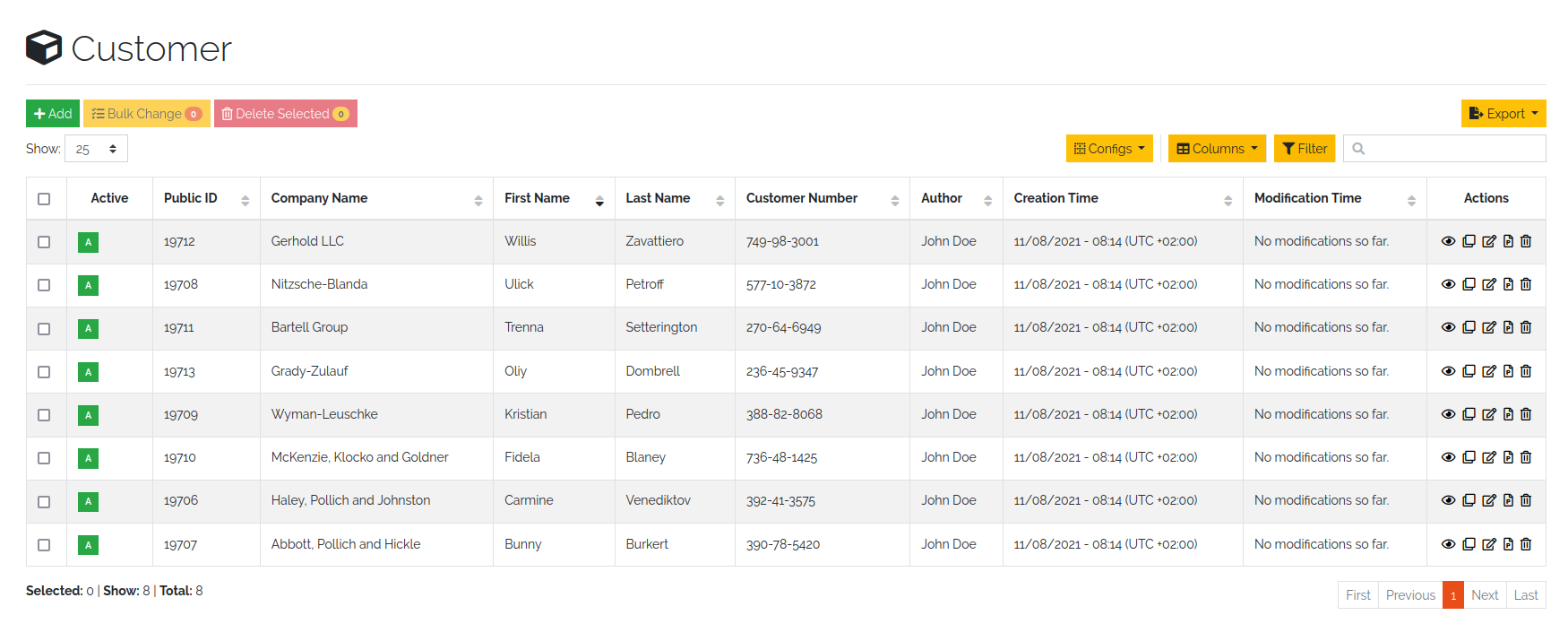
An unfiltered object list.
Search
Type into the search box above the table. DataGerry looks for the term in all searchable columns;
an object matches if any of its columns contains the term. The search is not case-sensitive, and
the term is read as a regular expression, so ^sw- finds values that start with sw-.
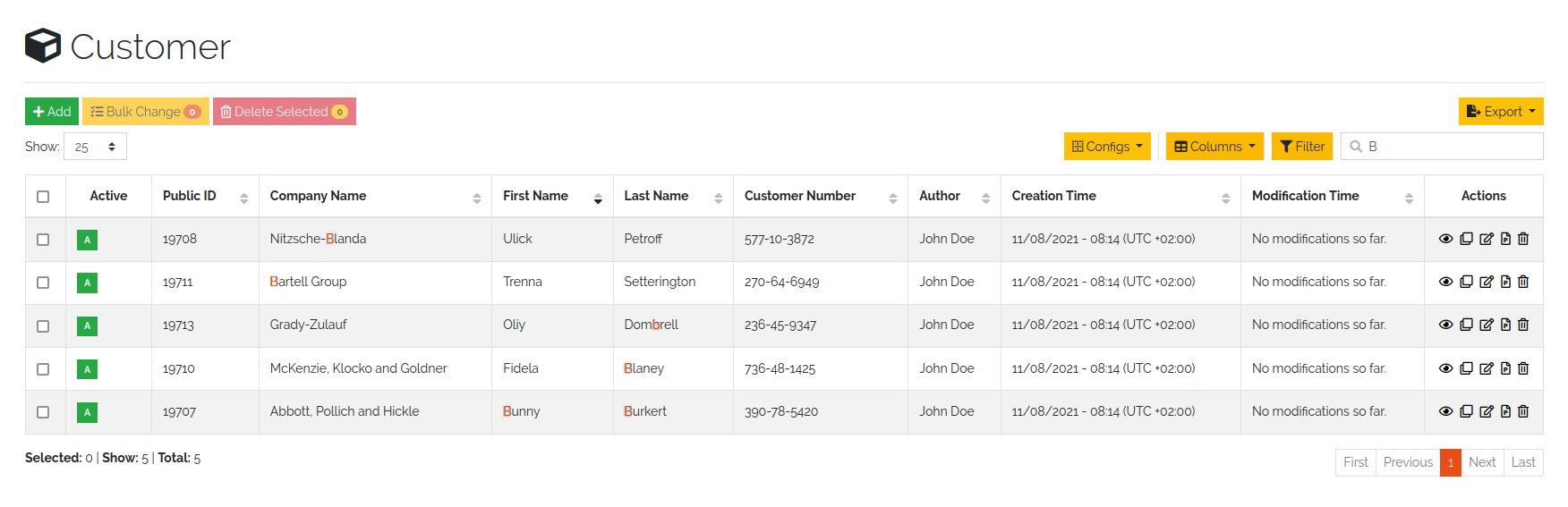
Result of a search for “hh”.
Filter
Filter adds an input row under the column headers, so you can search per column.
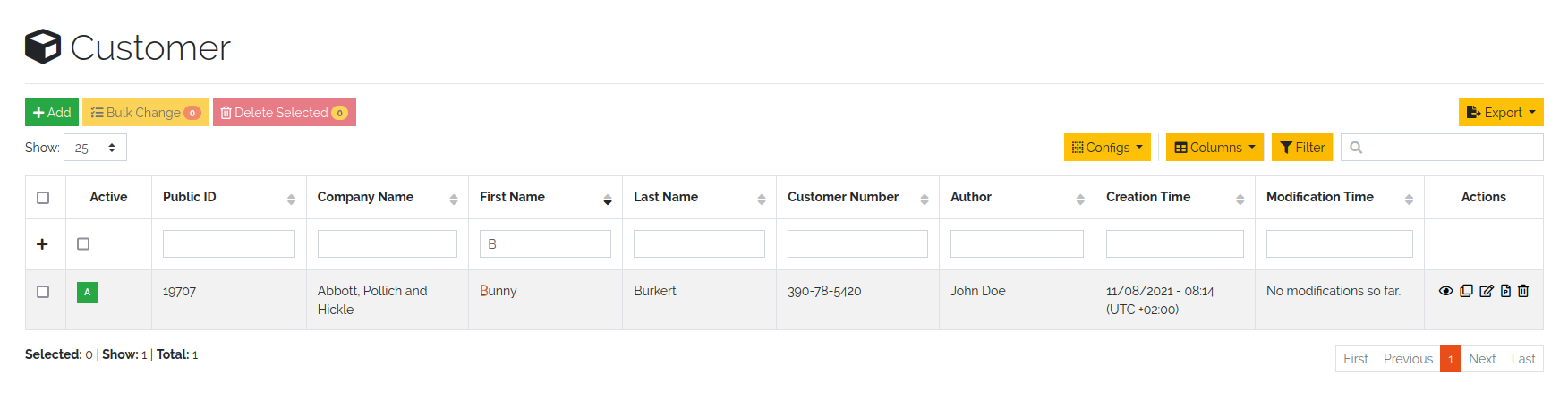
Result of filtering the Name column for “nb-“.
Filters combine like this:
Terms in the same row must all match — they are joined with AND.
Click + at the start of the filter row to add another row. Rows are alternatives — they are joined with OR. The trash icon in the Actions column removes a row.
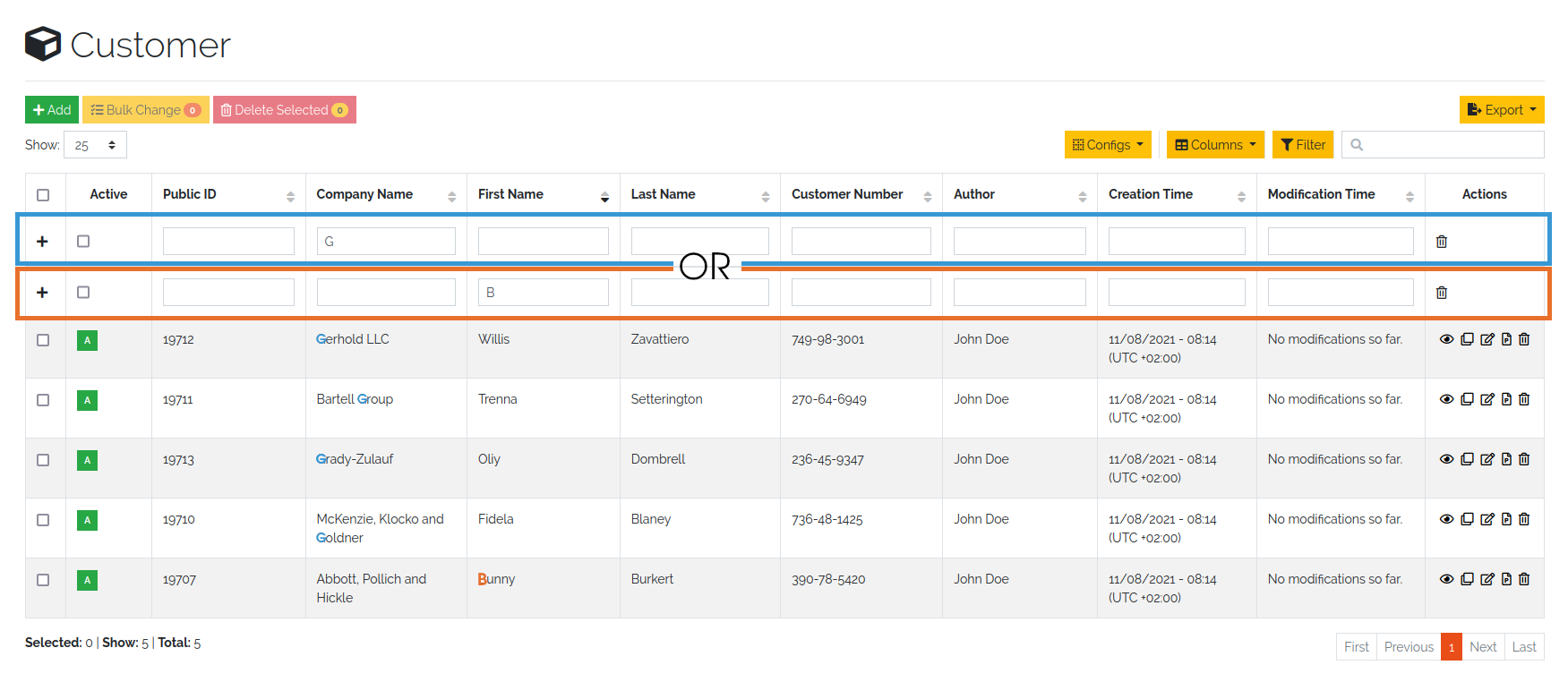
Two filter rows: objects matching either row (OR).
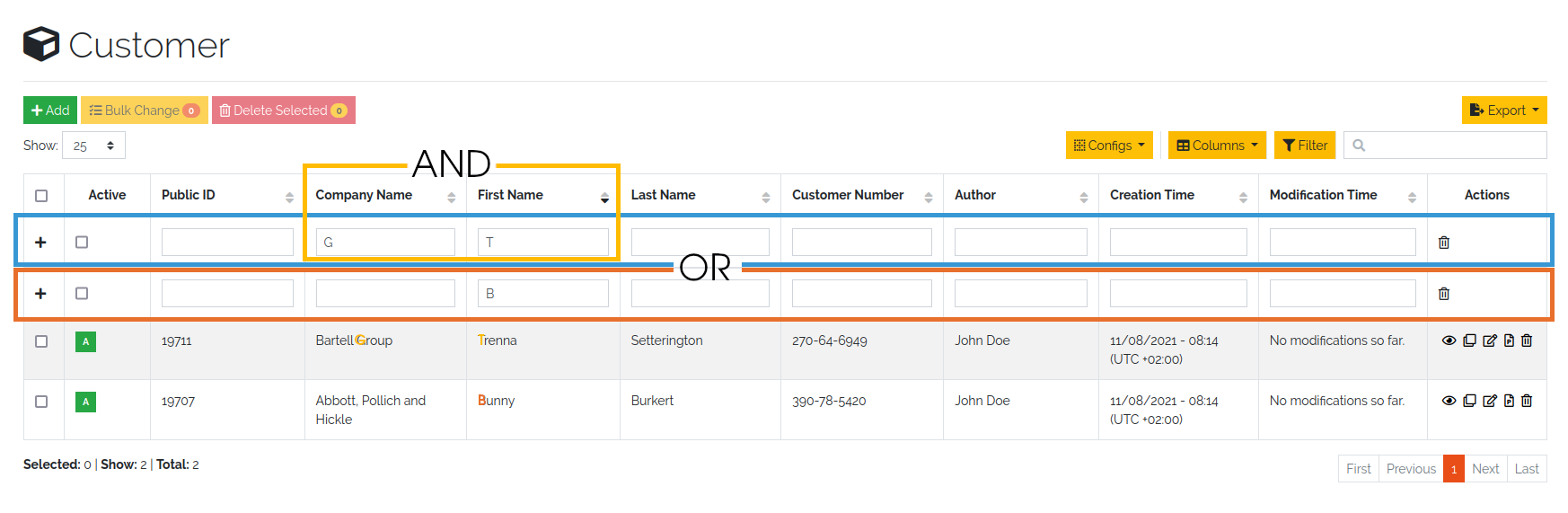
Two terms in one row: objects matching both (AND).
Dates are searched as text in the form YYYY-MM-DDThh:mm, for example 2019-12-19T11:02. A
prefix such as 2019-12 finds everything from that month.
An export from the list (Export) contains the visible columns and only the objects the current search or filter leaves — or only the selected objects, if you selected any.
Change many objects at once
A bulk change writes the same values into several objects of one type.
In the object list, select the objects and click Bulk Change.
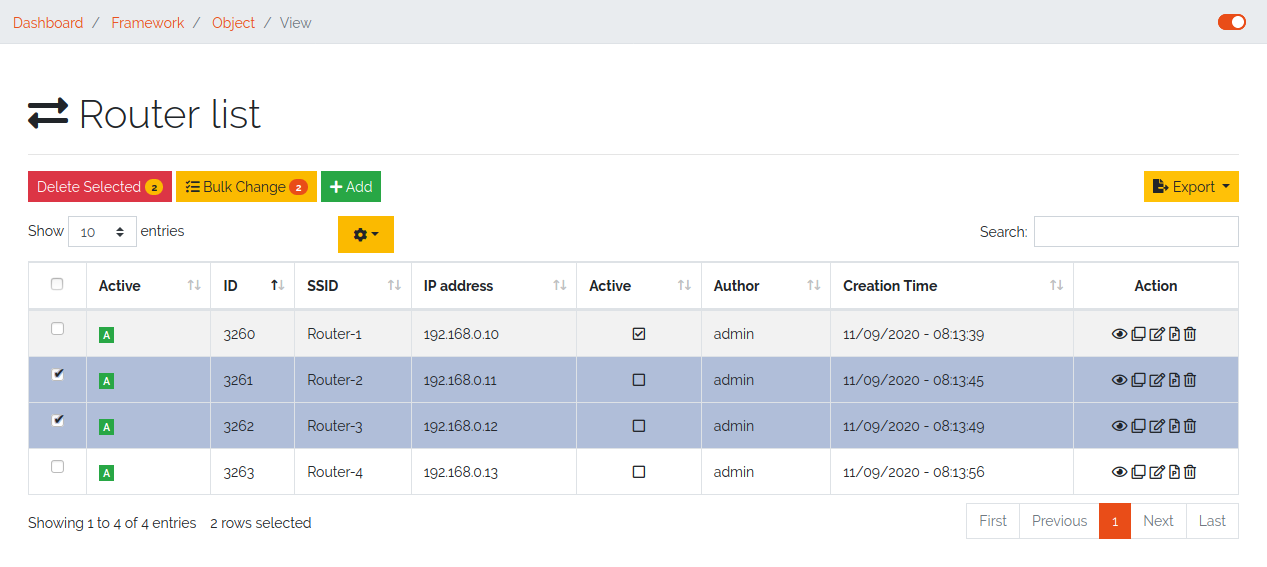
Objects selected for a bulk change.
Bulk Changes — the form looks like the form for a new object. Fill in only the fields you want to change. At the top you can also set all objects Active or Inactive; N/A leaves the state as it is.
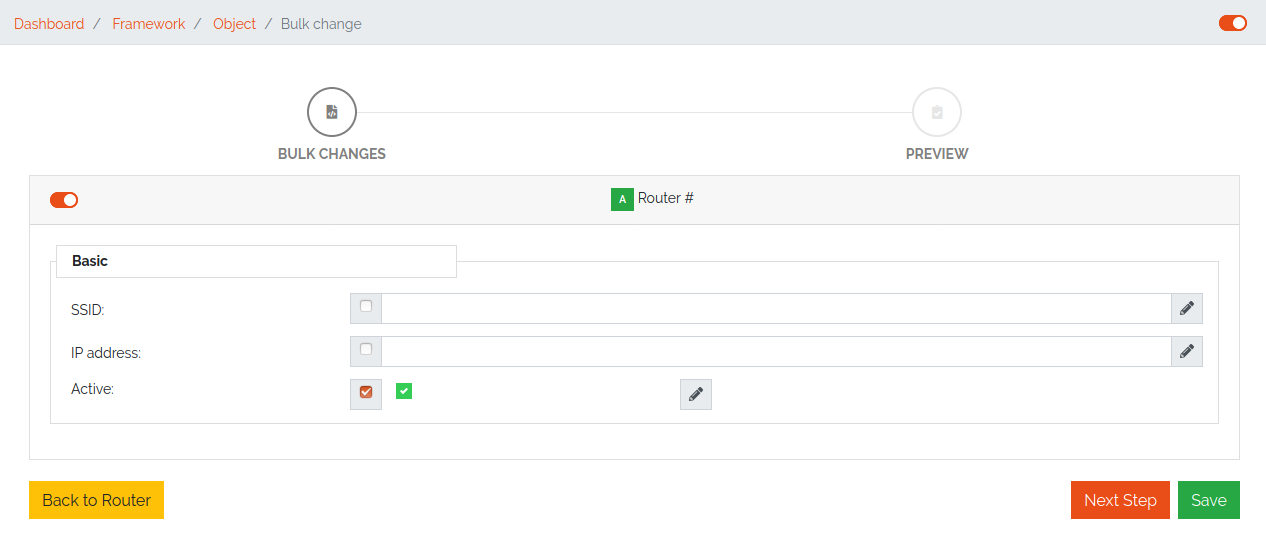
The change template.
Preview — lists every change per object. Go back to adjust if needed.
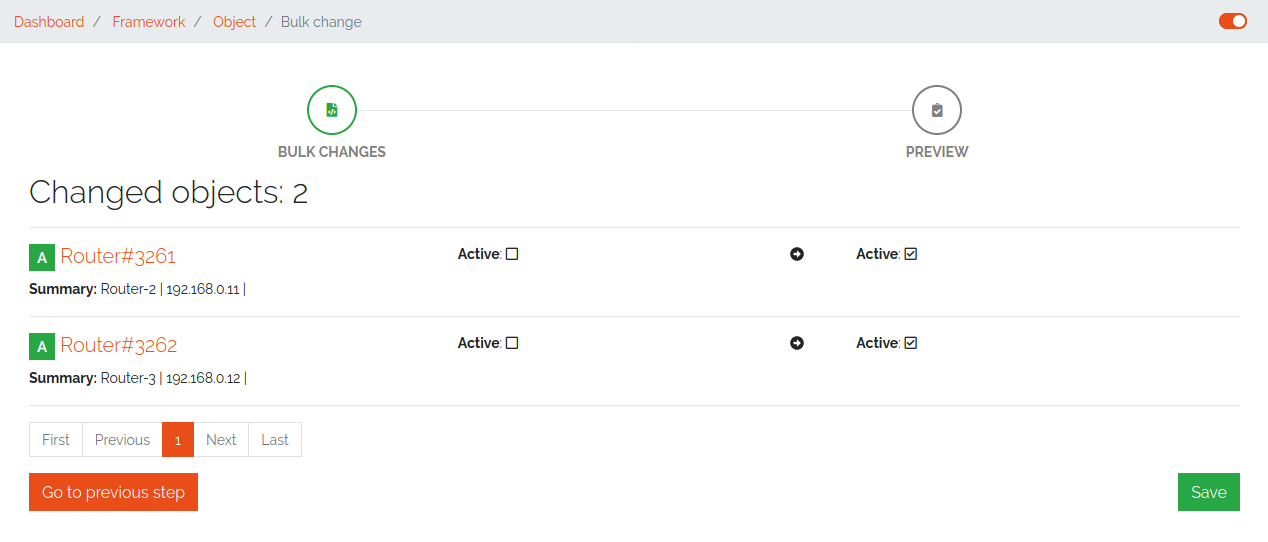
Preview of the changes.
Complete — DataGerry applies the changes and lists the changed objects, and any that failed.

Result of a bulk change.
Multi data sections are not part of a bulk change; edit them per object.