Start in the cloud
Cloud The fastest way to try DataGerry: a 14-day trial with all features, no installation. To run DataGerry on your own server instead, see Quick install.
Sign up for a trial
Fill in the registration form and confirm.
Open the e-mail you receive and confirm your address with the link in it. You cannot sign in before the address is confirmed.
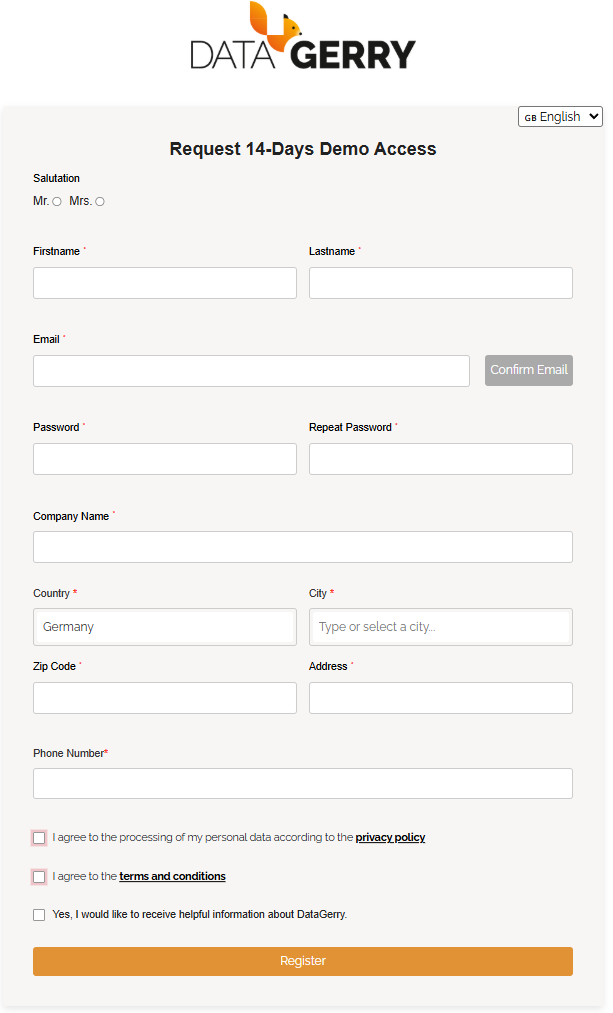
The trial sign-up form.
The trial is a full subscription with every feature switched on. When it ends, you can turn it into a paid subscription in the Service Portal; see Service Portal and subscriptions.
Two places to sign in
As a cloud customer you work with two applications, both with the same e-mail address and password:
Application |
Address |
What you do there |
|---|---|---|
Service Portal |
Subscriptions, users, invoices, API keys, support tickets. |
|
DataGerry |
The CMDB itself — everything else in this documentation. |
The Service Portal’s sidebar has a Cloud Access link that takes you to DataGerry.
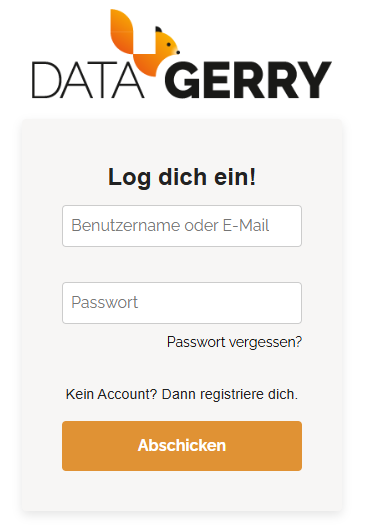
Service Portal sign-in.
Sign in to DataGerry
Open cloud.datagerry.com.
Enter your e-mail address and password — not a user name.
If your account belongs to more than one subscription, DataGerry asks you to Select a subscription. Each subscription is a separate CMDB with its own data; pick the one you want to work in and click Proceed.

The DataGerry sign-in page.

Choosing the subscription after signing in.
Forgot your password? The Forgot Password? link on the sign-in page resets it in the Service Portal — the password is the same for both applications.
First steps
On your first sign-in, the Start Assistant (Welcome to DATAGERRY) offers to create a ready-made set of types for your industry. Cancel it to start from scratch; while the data model is still empty you can reopen it from Toolbox → Assistant. See The Start Assistant.
Or build your first type yourself: Your first CMDB.
Invite colleagues in the Service Portal: Users in the cloud.
The bar at the top shows how many objects your subscription holds and its limit (Objects 120 / 10000).