ISMS
An Information Security Management System (ISMS) is a structured framework of policies, processes, and controls designed to manage and protect an organization’s sensitive data and information assets. It ensures that information security risks are identified, evaluated, and mitigated systematically across all areas of the organization.
The goal of an ISMS is not only to prevent data breaches or unauthorized access, but also to maintain the confidentiality, integrity, and availability of information — often referred to as the CIA triad.
An effective ISMS is aligned with international standards such as ISO/IEC 27001 and provides the foundation for establishing trust, meeting regulatory compliance requirements, and ensuring continual improvement of security posture.
Key elements of an ISMS include:
Risk Management - Identifying, evaluating, and addressing security risks
Policies and Procedures - Documenting rules and processes for information security
Roles and Responsibilities - Defining who is accountable for different areas of security
Asset Management - Tracking and classifying information assets and their importance
Incident Management - Preparing for and responding to security breaches and incidents
Continual Improvement - Regularly assessing and enhancing the ISMS based on audits and feedback
The ISMS implementation in DataGerry supports organizations in modeling these concepts and maintaining a centralized system to manage security-related documentation, responsibilities, risks, and controls.
To access the ISMS functionalities of DataGerry go to Toolbox -> ISMS.

Picture: ISMS overview
In the following sections, you will find detailed explanations of how ISMS-related features are integrated into DataGerry.
ISMS - Configuration
Before risks can be assessed and treated effectively, an Information Security Management System (ISMS) requires a solid foundation of clearly defined classification schemes and evaluation parameters. In DataGerry, the ISMS Configuration provides the necessary building blocks for a consistent and repeatable risk assessment process.
This configuration defines how risks are identified, scored, and categorized, and it forms the basis for generating a standardized Risk Matrix. It enables organizations to align their risk evaluation with internal policies or external frameworks.
The following elements are part of the ISMS Configuration:
Risk Classes - Define how risk levels are grouped and labeled (e.g., Low, Medium, High)
Likelihoods - Represent the probability of a risk event occurring
Impacts - Describe the potential consequences or severity if a risk occurs
Impact Categories - Break down impacts into specific domains (e.g., Financial, Legal, Operational)
Protection Goals - Define which security objectives are affected (e.g., Confidentiality, Integrity, Availability)
Risk Matrix - Combines likelihoods and impacts to determine overall risk levels based on the configured classes
These configuration elements are used throughout the ISMS functionality of DataGerry to evaluate risks, document their relevance, and decide on appropriate treatment strategies.
In the next sections, each of these configuration areas will be described in detail, including their purpose and how they are managed in the system.
To access the ISMS Configuration go to Toolbox -> Configure ISMS Settings
Risk classes
Risk Classes (or Risk Levels) define how calculated risks are categorized within the ISMS framework. They represent the severity or urgency of a given risk and are essential for supporting risk-based decision-making.
Each class groups a range of risk scores and gives them a human-readable meaning — for example: Low, Medium, or High. These labels are later used throughout the ISMS process to guide mitigation priorities, reporting, and compliance evaluations.
To access and manage Risk Classes, navigate to Toolbox -> Configure ISMS Settings -> Risk Classes.
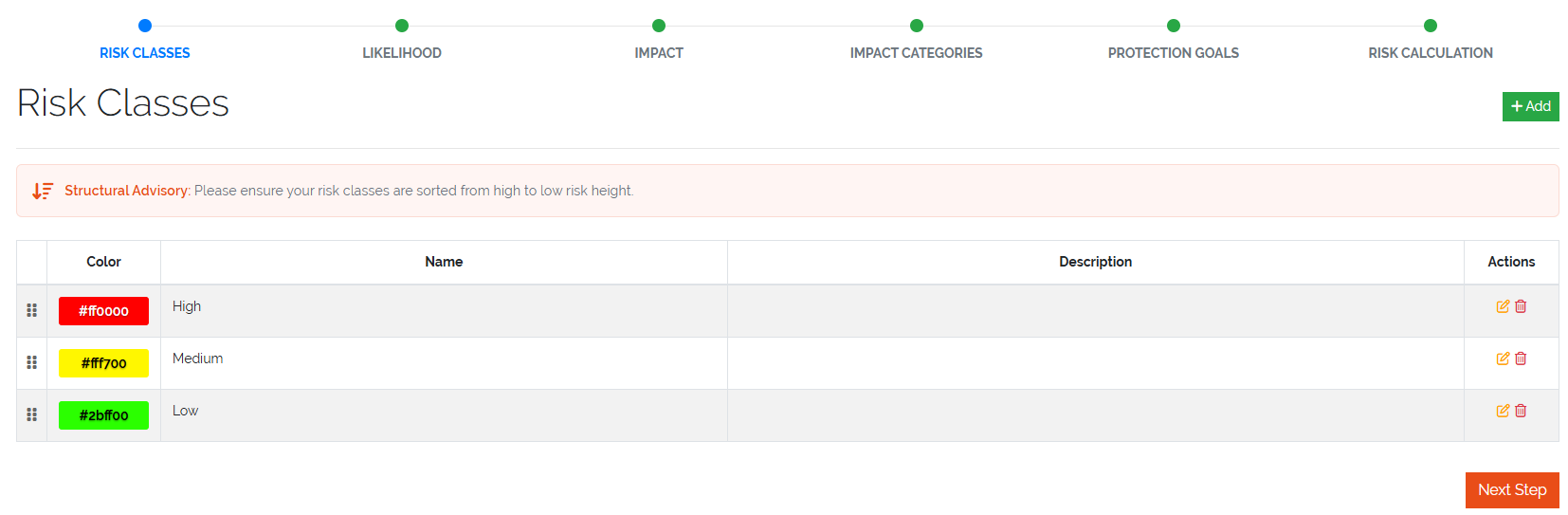
Picture: ISMS risk classes overview
Minimum and Maximum Limits
A minimum of three (3) risk classes is required to enable the ISMS risk evaluation process
A maximum of six (6) risk classes can be defined to keep evaluations consistent and manageable
Risk class fields
Each Risk Class includes the following fields:
name |
The name or title of the Risk Class (e.g., Low, Moderate, Critical) |
Color |
A visual color indicator used in risk matrices and tables for intuitive representation |
Description |
The description of the risk class |
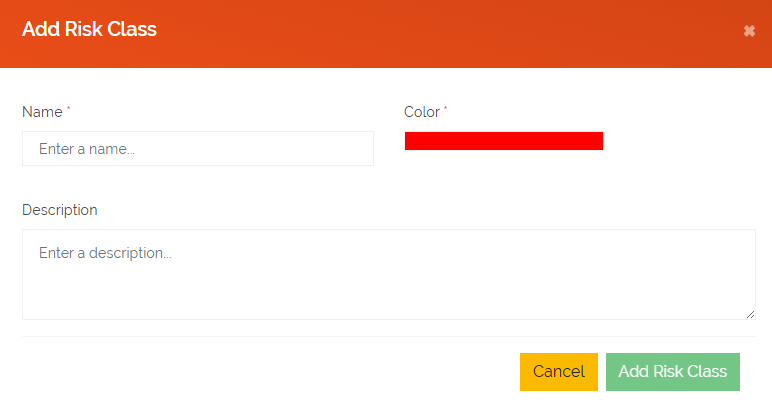
Picture: ISMS risk classes create form
Likelihoods
Likelihoods represent the probability that a specific risk scenario will occur. Within the ISMS framework, likelihood is one of the two primary dimensions (alongside impact) used to calculate overall risk severity. Proper definition of likelihood levels ensures consistent and repeatable risk assessments across the organization.
To manage Likelihoods, navigate to Toolbox -> Configure ISMS Settings -> Likelihoods.
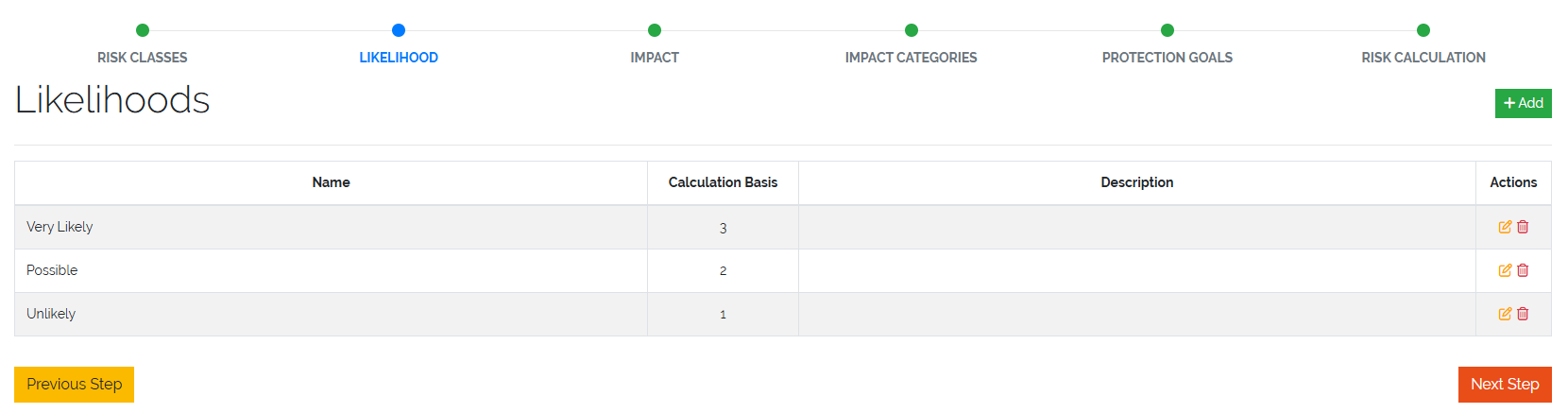
Picture: ISMS likelihoods overview
Minimum and Maximum Limits
A minimum of three (3) likelihood levels is required for the risk matrix to function correctly
A maximum of six (6) likelihood levels can be defined
Likelihood fields
Each Likelihood includes the following fields:
Name |
The name of the Likelihood level (e.g., Unlikely, Possible, Very Likely) |
Description |
The description of the Likelihood |
Calculation Basis |
A numeric value representing the likelihood’s weight; used in risk score calculations |
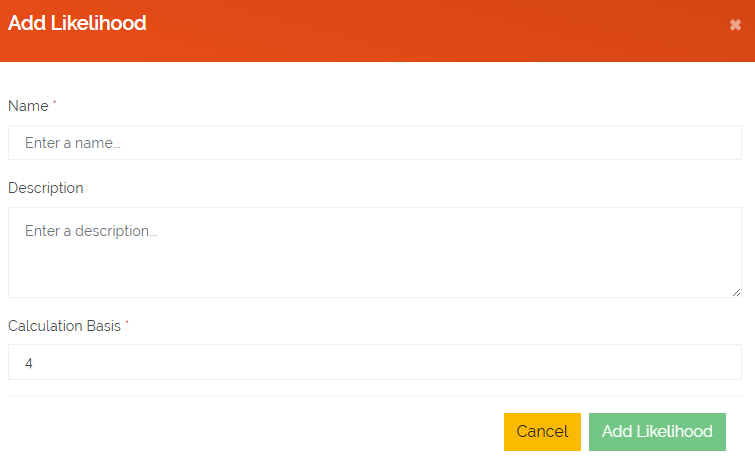
Picture: ISMS likelihood create form
Note
Likelihoods are used in combination with Impacts to determine a total risk score, which is then categorized using the defined Risk Classes
Impacts
Impacts represent the severity of consequences that would result if a given risk scenario occurs. Together with Likelihoods, impacts form the basis of risk evaluation and define how critical a risk is to your organization. Well-defined impact levels help ensure a consistent and objective assessment process.
To manage Impacts, navigate to Toolbox -> Configure ISMS Settings -> Impacts.
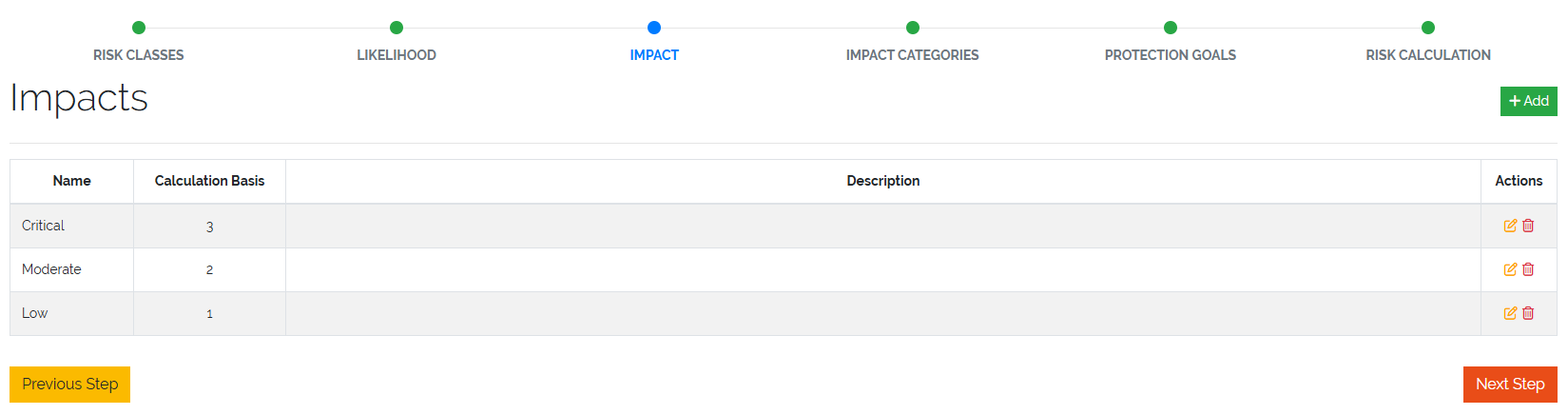
Picture: ISMS impacts overview
Minimum and Maximum Limits
A minimum of three (3) impact levels is required for the risk matrix to function correctly
A maximum of six (6) impact levels can be defined
Impact fields
Each Impact includes the following fields:
Name |
The name of the Impact level (e.g., Low, Moderate, Critical) |
Description |
A brief explanation of the potential consequence or damage for this impact level |
Calculation Basis |
A numeric value representing the severity of the impact; used in risk score calculations |
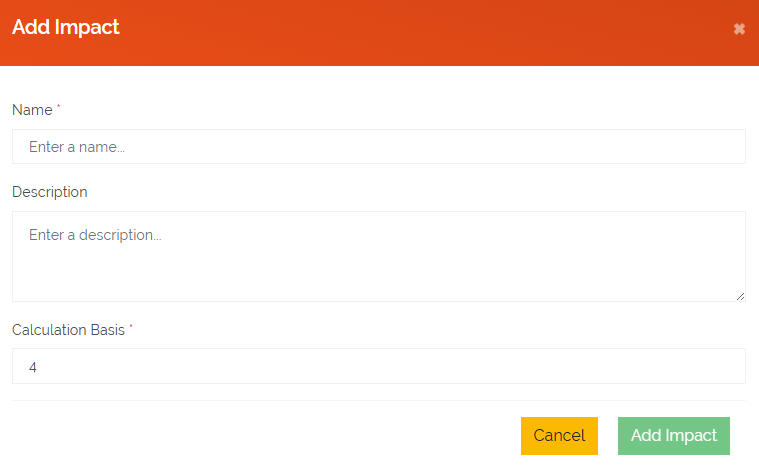
Picture: ISMS impact create form
Note
Impacts are used in combination with Likelihoods to determine the overall risk score, which is then classified using defined Risk Classes
Impact Categories
Impact Categories allow organizations to group different dimensions of potential impact for use in risk assessments. They provide context to the selected Impact levels by defining what a certain severity means in specific areas — such as financial damage, regulatory consequences, or business continuity.
To manage Impact Categories, navigate to Toolbox -> Configure ISMS Settings -> Impact Categories.
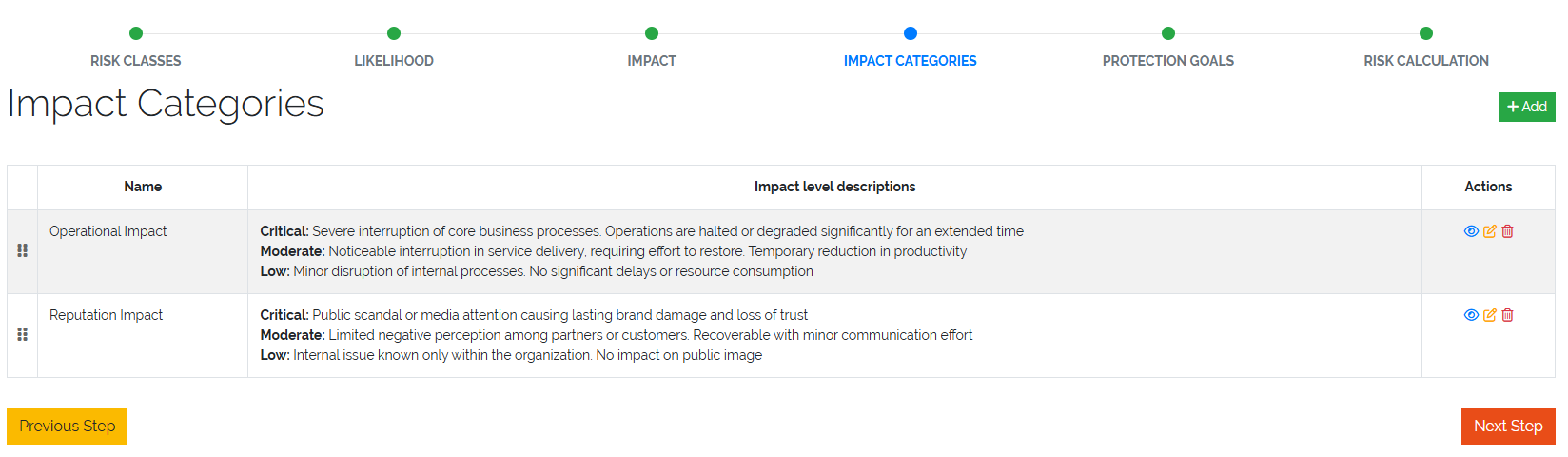
Picture: ISMS impact categories overview
Impact Category fields
Each Impact Category consists of the following fields:
Impact Category Name |
The name of the category (e.g., Financial, Legal, Operational) |
Impact Descriptions |
A list of descriptions for each defined Impact, describing what each level means within this category’s context |
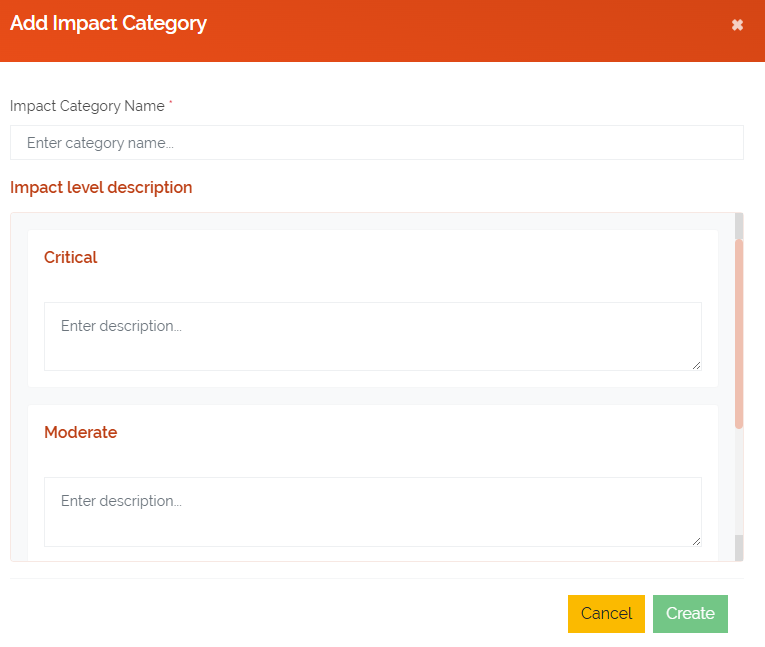
Picture: ISMS impact categories create form
Note
Each Impact Category can provide a textual description for every existing Impact, allowing risk assessors to understand the consequences within that category’s scope.
Protection Goals
Protection Goals define the core security objectives your organization aims to uphold when managing risks. These goals serve as key pillars in risk analysis and help determine the impact of specific threats on critical information assets.
In DataGerry’s ISMS module, three Protection Goals are predefined:
Confidentiality - Ensuring that sensitive information is accessible only to authorized parties.
Integrity - Ensuring the accuracy and reliability of information and systems.
Availability - Ensuring that systems and data are accessible when needed.
You may also define additional custom Protection Goals to reflect your organization’s specific requirements (e.g., Authenticity, Traceability, Resilience).
To manage Protection Goals, navigate to: Toolbox -> Configure ISMS Settings -> Protection Goals
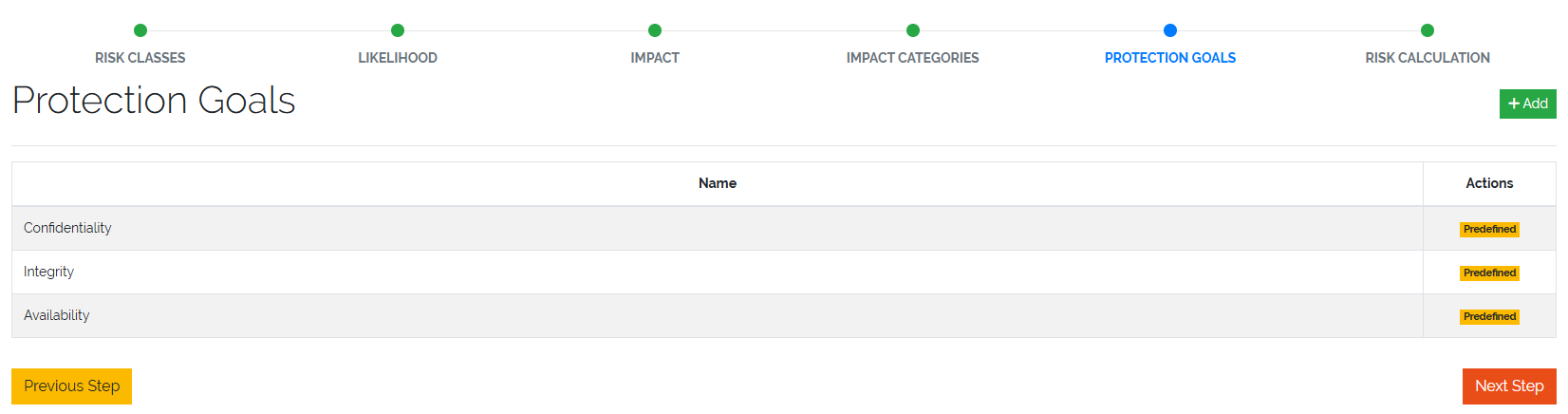
Picture: ISMS protection goal overview
Note
Each Protection Goal consists of a single field (name)
Risk Matrix
The Risk Matrix is the core mechanism used in the ISMS module to determine the severity of risks by evaluating the Likelihood of an event occurring against its potential Impact. The result is a Risk Class that reflects the criticality of the risk and guides appropriate mitigation measures.
To configure the Risk Matrix, navigate to: Toolbox -> Configure ISMS Settings -> Risk Calculation
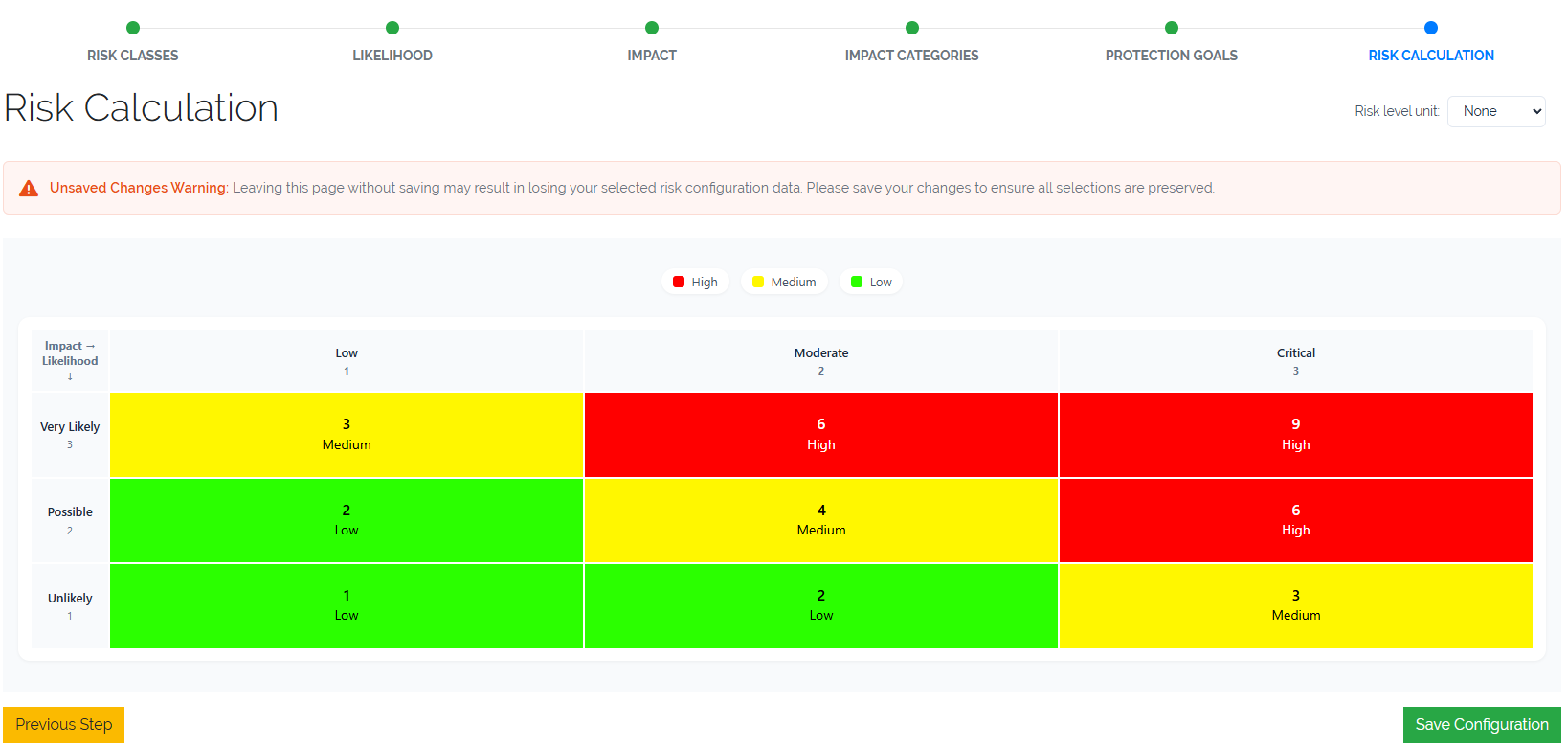
Picture: ISMS risk matrix overview
Matrix Configuration
A 2-dimensional matrix is displayed with:
Likelihoods on the Y-axis
Impacts on the X-axis
Each cell in the matrix represents a possible combination of Likelihood and Impact. The user simply selects a Risk Class for each combination — the structure of the matrix and the scoring logic are calculated automatically by the system.
This visual structure enables quick assessment and classification of risks based on their severity, using predefined logic.
Note
The number of rows and columns in the matrix is determined by the number of Likelihoods and Impacts defined in your ISMS configuration. Make sure you have at least 3 entries for each.
The Risk Matrix is dynamically generated based on the configured Likelihoods and Impacts. The user is only responsible for assigning appropriate Risk Classes to each cell.
Risk Level Unit
An optional setting allows you to define a Risk Level Unit, which is displayed in the matrix cells:
None - No unit displayed
€ - Euro symbol
$ - Dollar symbol
This setting is purely visual and does not affect the actual calculation or classification logic.
Threats
Threats represent potential causes of unwanted incidents that may result in harm to a system, asset, or organization. They are a key component in evaluating Risks within the ISMS and must be created before defining Risks of type “Threat x Vulnerability” or Threat.
To manage Threats, navigate to Toolbox -> ISMS -> Threats.
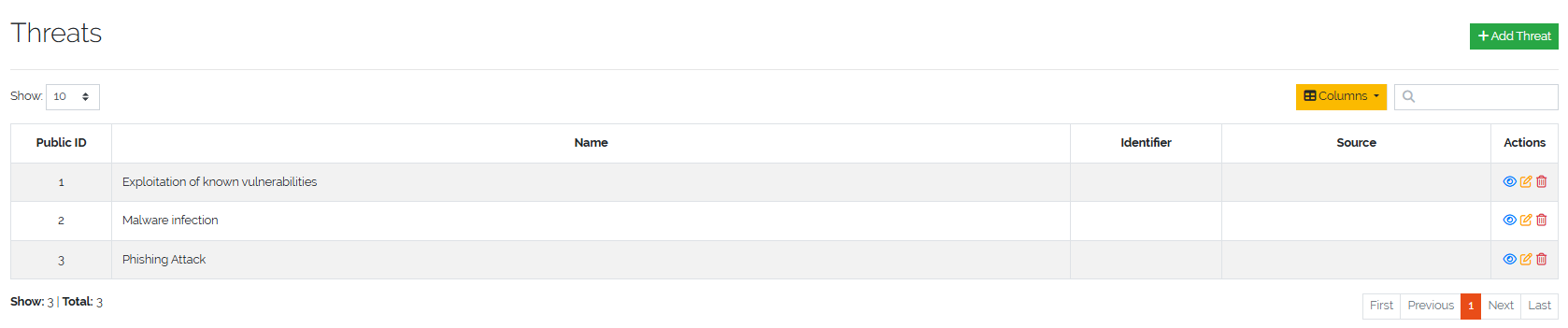
Picure: Threats overview
Each Threat includes the following fields:
Name |
A short, descriptive name for the threat (e.g., Malware Infection, Phishing Attack) |
Source |
Optional field indicating the origin or classification of the threat (can be a numeric reference or category ID) |
Identifier |
Optional string to uniquely identify or reference the threat (e.g., THR-001) |
Description |
A longer explanation of the threat and its potential impact |
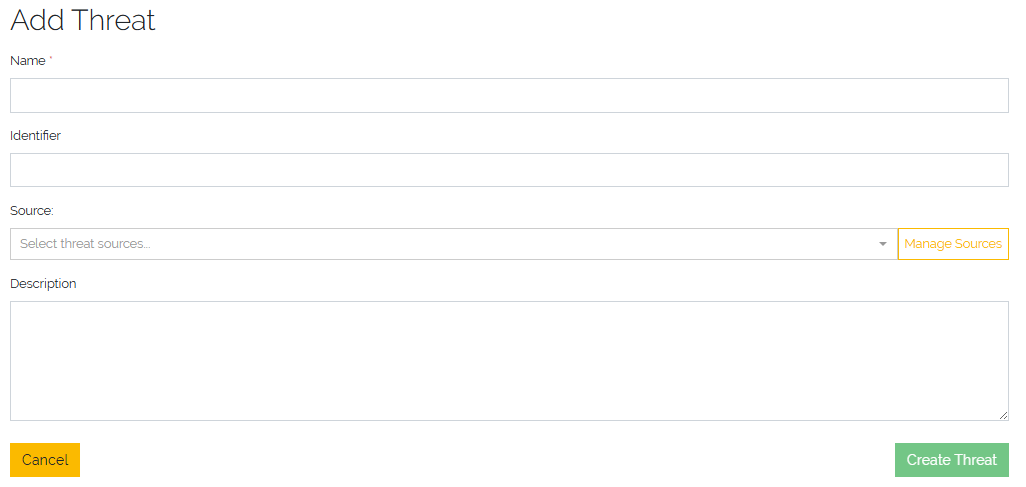
Picure: Create Threat form
Vulnerabilities
Vulnerabilities are weaknesses in systems, processes, or controls that can be exploited by Threats to cause harm or loss. In the ISMS context, Vulnerabilities are used to assess and define Risks — especially in combination with Threats when using the “Threat x Vulnerability” risk type.
To manage Vulnerabilities, navigate to Toolbox -> ISMS -> Vulnerabilities.

Picure: Vulnerabilities overview
Each Vulnerability includes the following fields:
Name |
A short, descriptive name for the vulnerability (e.g., Outdated Software, Weak Password Policy) |
Source |
Optional field to indicate the origin or classification of the vulnerability (can be a numeric reference or category ID) |
Identifier |
Optional string to uniquely identify or reference the vulnerability (e.g., VUL-001) |
Description |
A detailed explanation of the vulnerability and its potential implications |
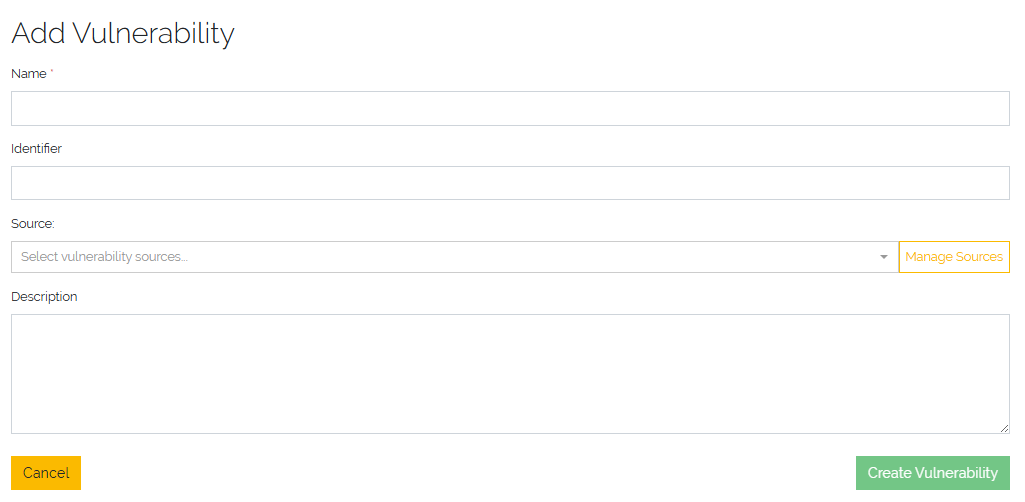
Picure: Create Vulnerability form
Risks
Within the ISMS module, Risks represent potential threats to the confidentiality, integrity, or availability of information assets. Risks are central to performing security assessments and defining mitigation strategies.
To manage risks, navigate to: Toolbox -> ISMS -> Risks.

Picure: Risks overview
The Risks overview provides a list of all defined risks in the system, including their types, associated protection goals, and threat context. From this view, you can:
Create new Risks
Edit existing ones
Filter or search Risks
Risk Fields
When creating or editing a Risk, the fields that are displayed in the form depend on the selected Risk Type. This ensures that only relevant data is captured for each kind of Risk.
Each risk includes the following fields:
Name |
The title of the risk |
Risk Type |
The classification of the risk, which controls the visibility of other fields in the form. Available types include:
|
Protection Goals |
A list of protection goals (e.g., Confidentiality, Integrity, Availability) the risk may impact |
Threats |
A list of known or anticipated threats that contribute to the risk (optional, depending on type) |
Vulnerabilities |
Weaknesses in the system that can be exploited by the associated threats (optional, depending on type) |
Consequences |
Free-text description of potential outcomes if the risk materializes (optional) |
Description |
Detailed explanation of the risk scenario |
Category |
A risk category that groups similar risks |
Identifier |
An optional unique reference code for internal or regulatory use |
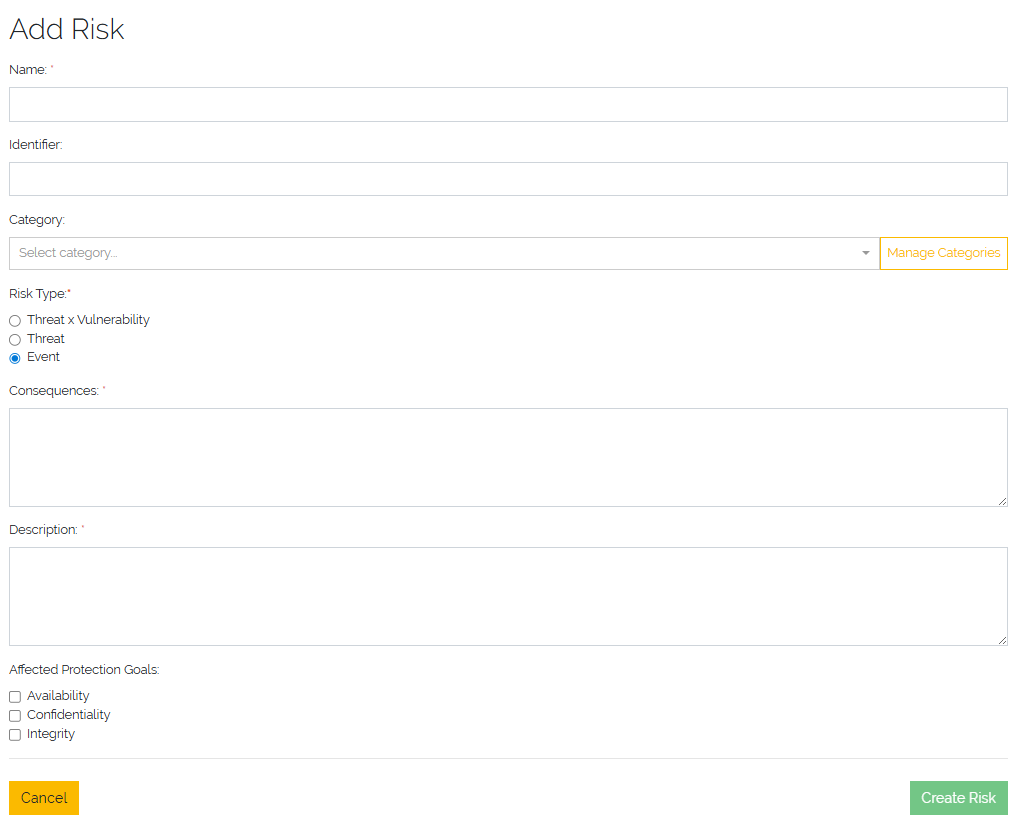
Picure: Create Risk form
Example of a configured Risk
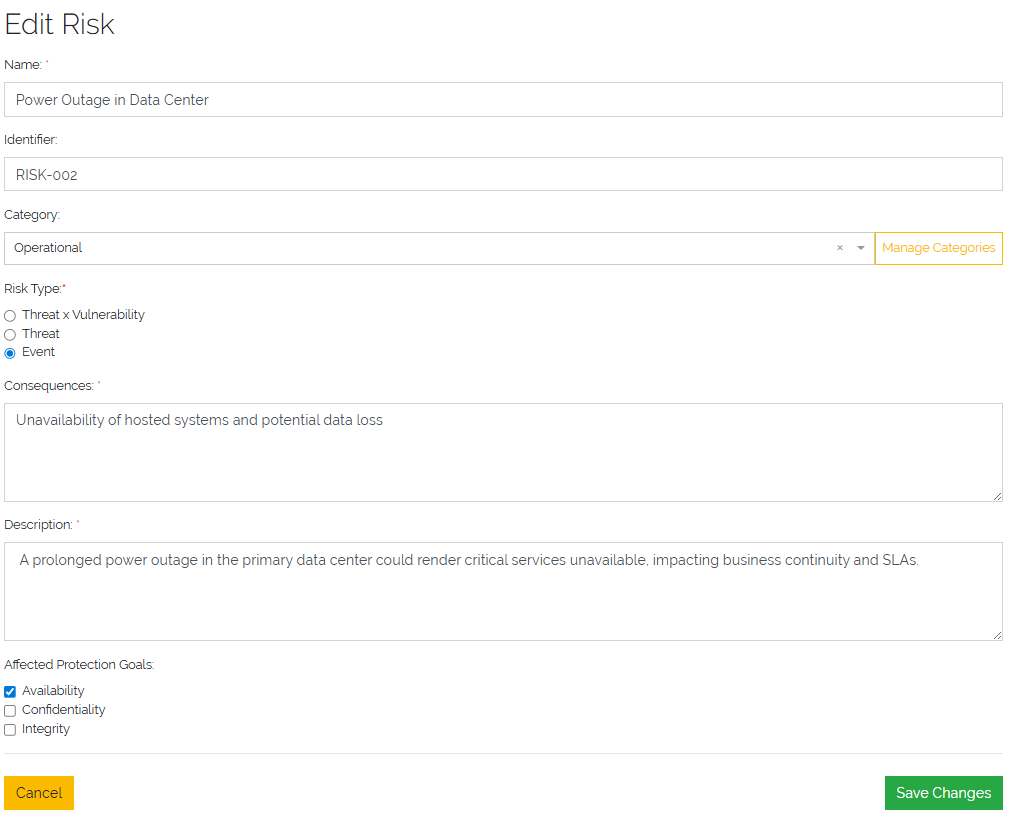
Picure: Example of a Risk
Controls
Controls represent specific actions, procedures, or mechanisms designed to reduce or eliminate identified Risks within the ISMS framework. Controls can originate from internal policies, regulatory requirements, or industry standards.
To manage Controls, navigate to Toolbox -> ISMS -> Controls.

Picure: Controls overview
Each Control includes the following fields:
Name |
The name or title of the control (e.g., Access Control Policy, Regular Patch Management) |
Control Measure Type |
Describes the type of the control, which indicates its role or origin within the risk management process. Available types include:
|
Source |
Optional reference indicating the source of the control (e.g., a framework or standard such as ISO 27001) |
Implementation State |
Indicates the current implementation status (e.g., Planned, In Progress, Implemented) |
Identifier |
A unique string used to identify the control (e.g., CTRL-001) |
Chapter |
A reference to a standard, framework, or internal policy section the control relates to (e.g., A.9.1.1) |
Description |
A detailed explanation of what the control is and how it mitigates risk |
Is Applicable |
A boolean flag indicating whether the control is applicable to the organization or context |
Reason |
A justification for the control’s applicability or inapplicability (e.g., Not applicable due to cloud hosting model) |
Note
Controls are typically linked to Risks during the risk treatment process to define how specific risks are mitigated or handled.
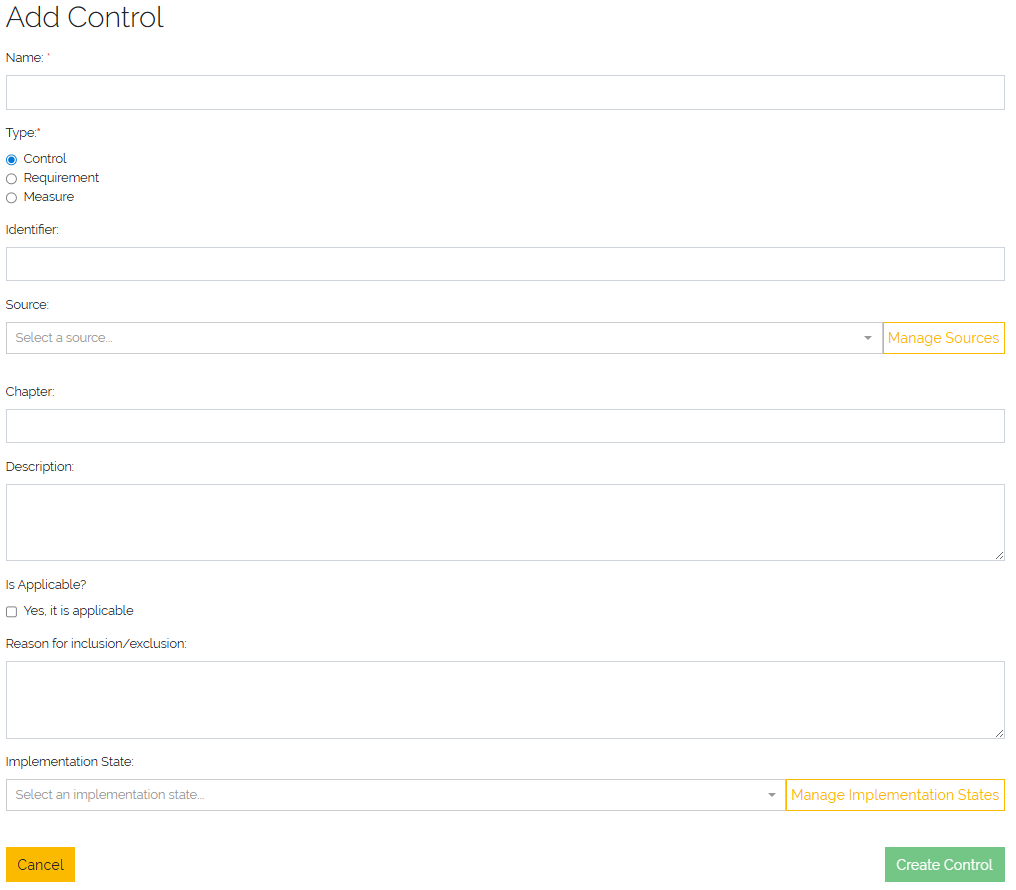
Picure: Create Control form
Risk Assessments
Risk Assessments are a central part of the ISMS process. They provide a detailed analysis of how Risks impact specific components (e.g., assets, systems, or groups) and define how those Risks are managed, mitigated, or accepted through risk treatment.
Accessing Risk Assessments
Risk Assessments are NOT located under the Toolbox -> ISMS section. Instead, they are contextually accessible through the following entry points:
From an Object detailed view
From an ObjectGroup detailed view
From a Risk detailed view
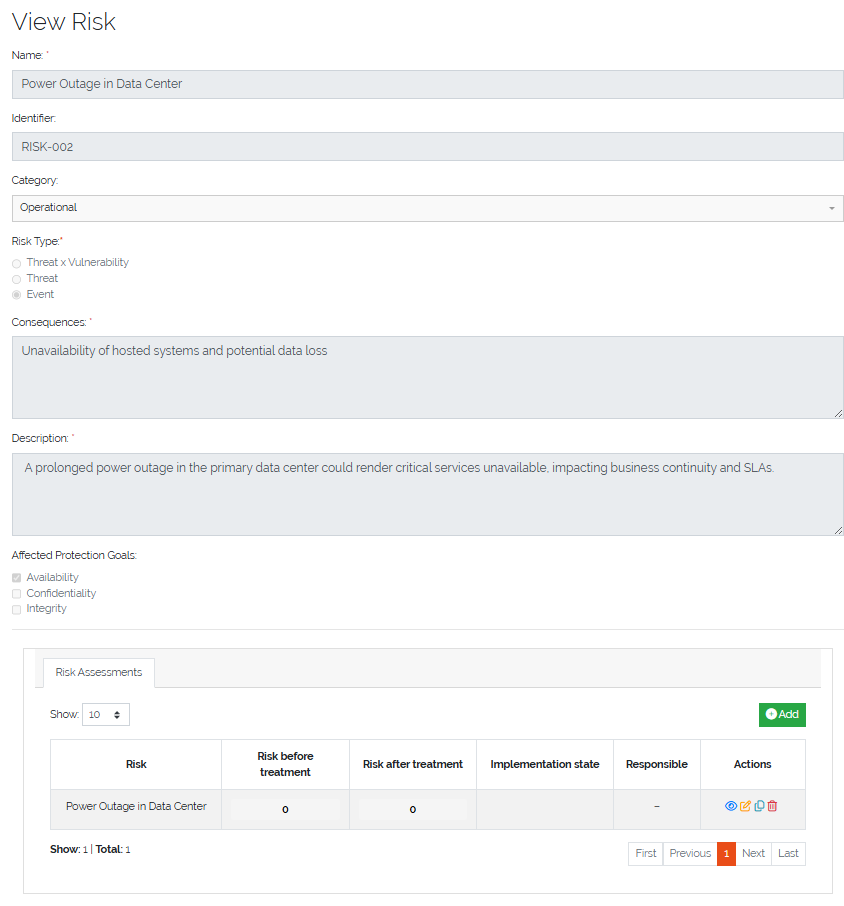
Picure: Risk Assessments shown in a Risk detailed view
This design allows assessments to be directly tied to relevant assets or groups.
Create Risk Assessment
The Risk Assessment form is logically divided into several sequential sections. At the top of the form, the user selects the associated Risk and the related Object or ObjectGroup.
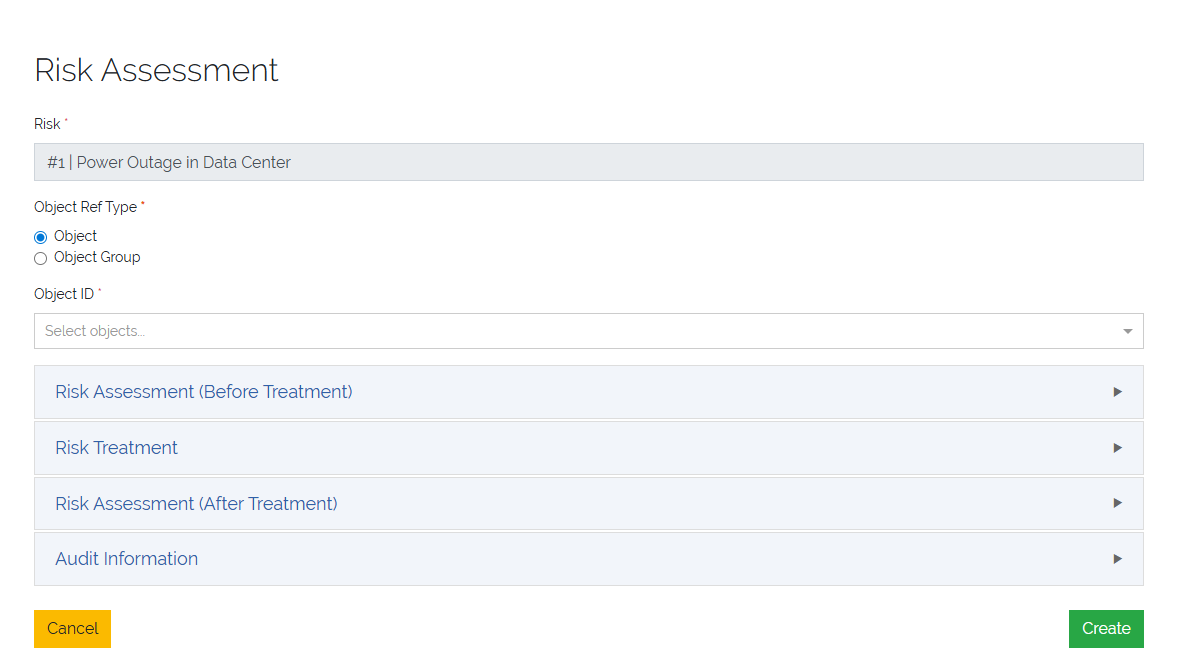
Picure: Create Risk Assessment form
The remaining form is divided into the following key sections:
Risk Assessment (Before Treatment)
This section is used to document the initial evaluation of the Risk before any mitigating actions or treatments have been applied. The assessment relies on the selection of Likelihood and Impact values to determine the initial Risk Class, along with key metadata such as responsible individuals and assessment date.
Fields in this Section
Impacts |
For each defined Impact Category a slider is displayed. Each slider allows the selection of one of the available Impacts in that category. Each Impact corresponds to a defined severity level with a numerical calculation basis used for risk scoring. |
Likelihood |
A single slider used to select the Likelihood of the Risk Classes scenario. Each Likelihood level also has a numeric calculation basis associated with it. |
Calculated Risk |
This field is automatically calculated as: Maximum Impact (calculation basis) x Likelihood (calculation basis). It provides a quantitative representation of the initial risk level. The maximum Impacts is determined from the highest selected impact across all Impact Categories. |
Risk Assessor |
The Person (usually an ISMS or risk management team member) who performed the assessment |
Risk Owner |
The Person or PersonGroup responsible for the Risk |
Interviewed Persons |
A list of ref:Persons <persons-anchor> who were interviewed during the Risk evaluation process. This field supports multiple entries. |
Date of Assessment |
The date on which the Risk Assessment was carried out. |
Additional Information |
A free-text field where the assessor can include any further context, observations, or relevant notes related to the assessment. |
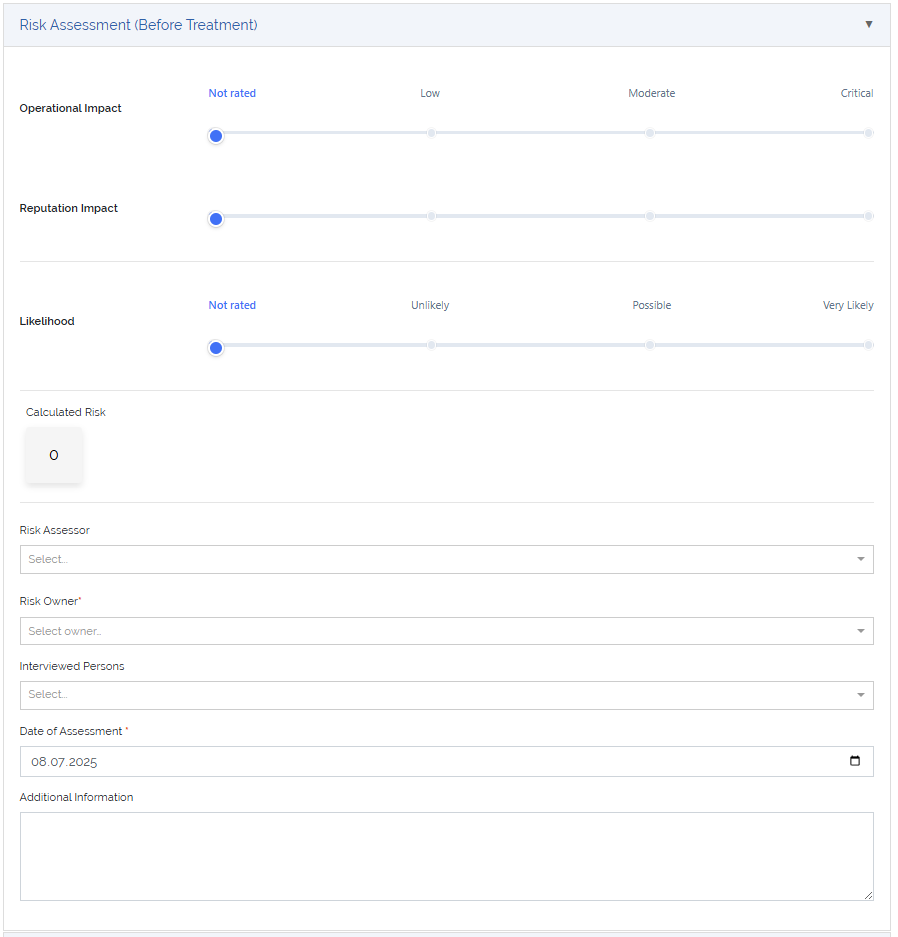
Picure: Create Risk Assessment form - Risk Assessment (Before Treatment)
Risk Treatment
This section documents the strategy and planned actions for addressing the Risk identified in the assessment. Depending on the selected treatment option, appropriate responsibilities, timelines, and resource requirements must be provided. In addition, relevant Controls can be assigned to this treatment (more details at Control Assignment).
Fields in this Section
Treatment Option |
Selection of one of the following strategies to address the Risk
|
Responsible Persons |
Specifies the individual or group tasked with executing the selected risk treatment. Supports assignment to either a Person or a PersonGroup. |
Risk Treatment Description |
A detailed text field explaining how the Risk will be treated, what measures will be applied, and how these address the identified Risk. |
Planned Implementation Date |
The target date for completing the implementation of the treatment plan. |
Implementation State |
A dropdown field indicating the current progress of implementation. Common states might include: Open, In Progress, Implemented. |
Finished Implementation Date |
The actual date when the treatment was fully implemented. |
Required Resources |
A textarea used to describe personnel, time, tools, or other resources needed to carry out the treatment. |
Cost for Implementation |
A numeric input field to specify estimated or actual cost of implementing the treatment measures. |
Currency |
A text input to define the currency used in the cost field (e.g., EUR, USD). |
Priority |
Dropdown field indicating the urgency or importance of the treatment. Priority levels include:
|
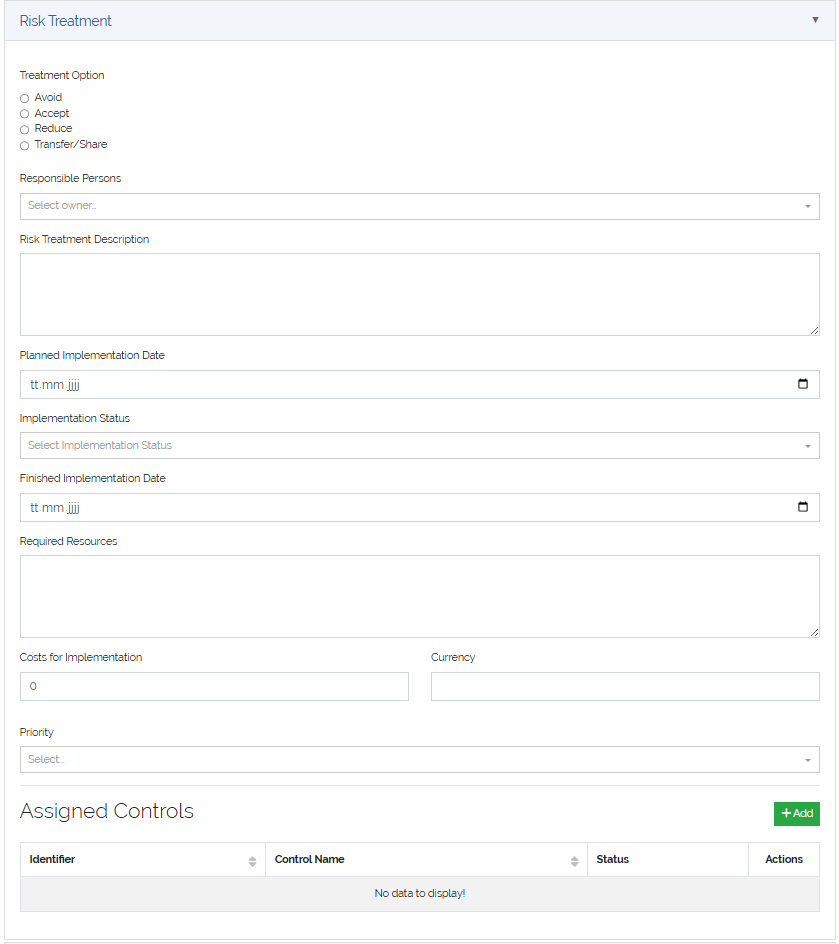
Picure: Create Risk Assessment form - Risk Treatment
Risk Assessment (After Treatment)
This section is used to reassess the Risk after the selected treatment has been implemented. It helps evaluate the effectiveness of the applied Controls and the update risk exposure.
Fields in this Section
Impact Sliders |
For each defined Impact Category, a slider is displayed to re-evaluate the impact level. The available steps in each slider represent the defined Impact Levels (e.g., Low, Moderate, Critical). |
Likelihood Slider |
A single slider to reassess the Likelihood of the Risk occurring after the treatment. Uses the same scale and values as the initial assessment. |
Calculated Risk |
Displays the recalculated risk level after treatment. The value is automatically calculated as:
This serves as a comparison with the risk before treatment and helps demonstrate the effectiveness of the treatment strategy. |
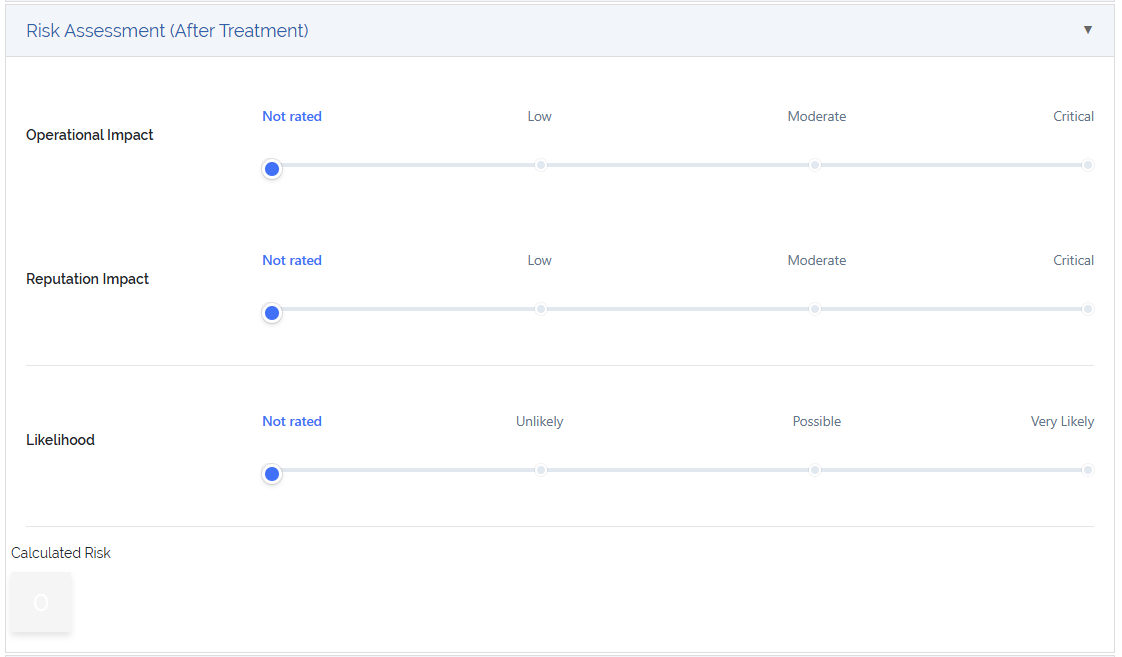
Picure: Create Risk Assessment form - Risk Assessment (After Treatment)
Audit Information
The Audit Information section is used to verify the effectiveness of the risk treatment measures. It allows documentation of the audit process, including when it took place, who performed it, and the results.
Fields in this Section
Audit Done Date |
The date on which the audit or review of the implemented risk treatment was completed. |
Auditor |
The Person or PersonGroup responsible for conducting the audit. |
Audit Result |
A free-text area to record the outcome of the audit, observations, or conclusions. This may include comments on whether the controls were effective, partially effective, or require improvements. |
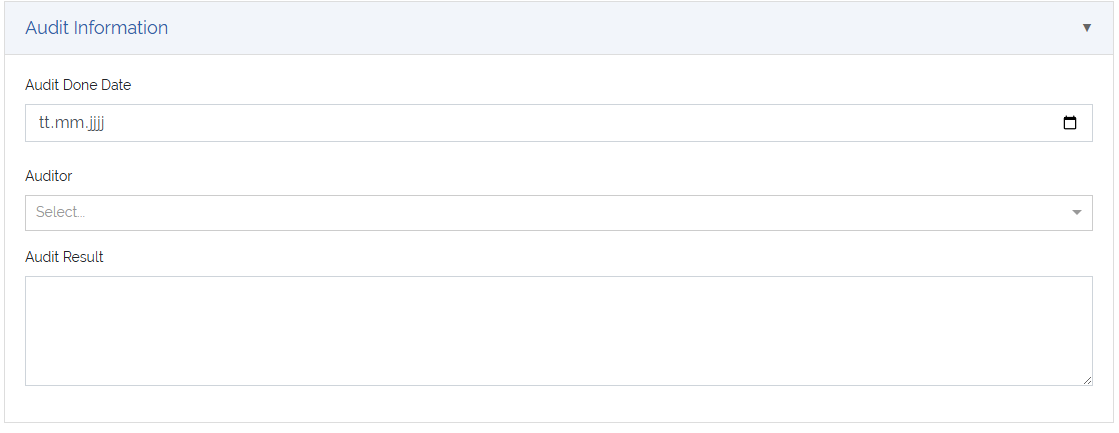
Picure: Create Risk Assessment form - Audit Information
Note
While many fields are required, certain inputs (such as cost or audit details) may be completed at a later stage during the treatment lifecycle.
Control Assignments
Control Assignments link Controls to specific Risk Assessments, documenting how individual controls are intended to mitigate identified Risks. These assignments support traceability, accountability, and audit readiness.
Assignment Methods
Controls can be assigned in two ways:
Within the Risk Assessment Form
Inside the Risk Treatment section of a Risk Assessment, a user can assign one or more Controls using the “Add” button next to “Assigned Controls”. Assigned controls are then listed in a table below with editable implementation metadata.
From the Control Detail View
Alternatively, you can assign a Control directly from its detailed view by selecting a target Risk Assessment. This allows you to see where the Control is already used and attach it to new assessments.
Assignment Fields
Each control assignment includes the following information:
Control |
Reference to the control being assigned (selected from existing controls) |
Risk Assessment |
Reference to the risk assessment the control is linked to |
Planned Implementation Date |
The date by which the control is planned to be implemented |
Implementation Status |
Current status of implementation (e.g., Planned, In Progress, Implemented). This is selected from an extendable option set |
Finished Implementation Date |
The date the implementation was completed |
Priority |
Indicates the urgency or importance of implementing the control. Available values include:
|
Responsible for Implementation |
The person or person group responsible for implementing the control |
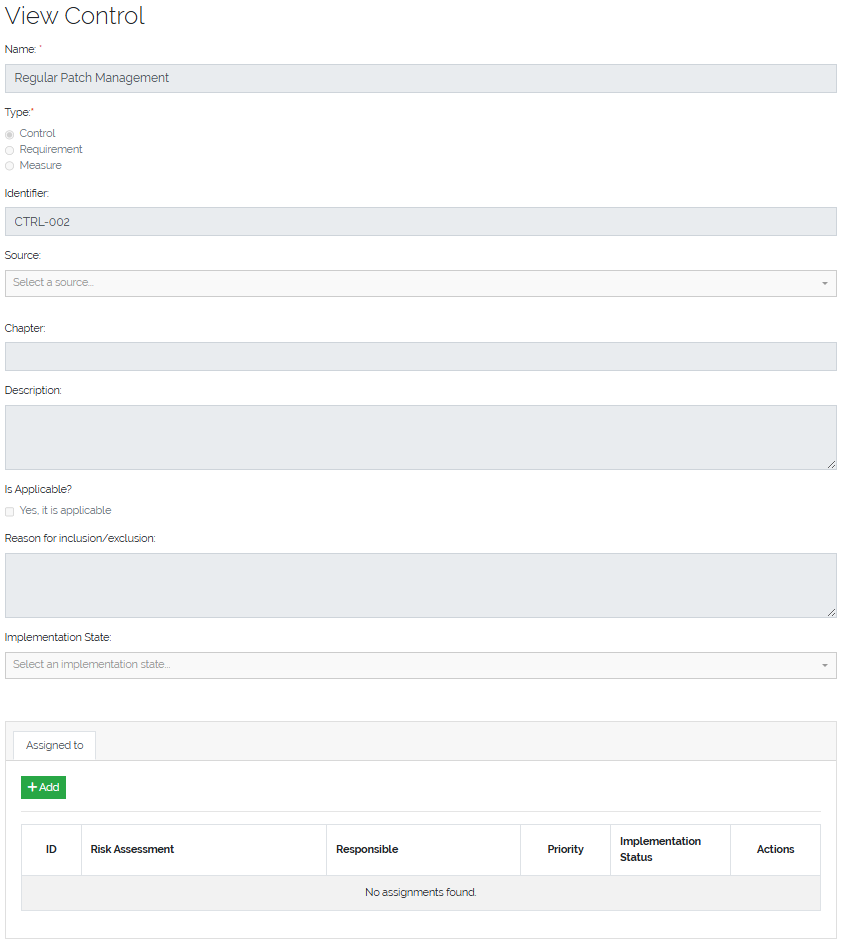
Picure: Assigning a Control to a Risk Assessment from Control detailed view
Benefits of Assignments
Centralized tracking of control usage across multiple risks
Clear accountability through assignment of responsible individuals or groups
Structured implementation timeline with planned and actual completion dates
Priority-based planning to focus efforts on the most critical risks
Supports auditability by showing what controls were applied and their effectiveness status
Note
Control assignments enhance transparency and ensure that risk treatments are actionable and verifiable.
ISMS Reporting
The ISMS Reporting module provides four essential reports to support transparency, oversight, and compliance within your Information Security Management System:
Risk Matrix
Risk Treatment Plan
Statement of Applicability (SoA)
Risk Assessments Overview
Each report delivers valuable insights into the risk landscape and the status of mitigation efforts across the organization.
Risk Matrix
The Risk Matrix report is a visual representation of the distribution of risk levels across all risk assessments. It helps organizations understand the concentration of risks by likelihood and impact before and after treatment. This report includes three matrix views:
Risk Matrix Before Treatment - Displays all risk assessments using their calculated risk before treatment. - Risks are plotted in the matrix based on the maximum impact and likelihood before any mitigation actions.
Risk Matrix (Current State) - This view gives a live perspective on where risks currently stand based on actual mitigation progress. - Dynamically summarizes risks based on their current implementation status. - For risk assessments where the implementation state is not “Implemented”, the pre-treatment risk is used. - For risk assessments where the implementation state is “Implemented”, the post-treatment risk is used.
Risk Matrix After Treatment - Displays all risk assessments using their calculated risk after treatment. - Useful for demonstrating residual risk and effectiveness of mitigation controls.
Interactive Capabilities - Clicking on a number in any cell of the matrix opens a filtered list of corresponding risk assessments - This allows users to drill down into the specific risks contributing to each matrix position
Export Functionality - All three matrices can be exported as PDF files, preserving color coding and layout for use in audits, compliance reviews, and presentations.
Benefits
Provides clear visibility into the distribution and severity of risks.
Enables data-driven decision-making on where to focus risk treatment resources.
Supports audit readiness with PDF exports.
Enhances transparency by linking matrix cells directly to underlying risk records.
Risk Treatment Plan
The Risk Treatment Plan report provides a detailed and actionable overview of all risk assessments, grouped and structured by the associated risk object. This report supports security planning, implementation tracking, and audit preparation by linking risks to their treatment strategies and control implementations.
This report joins information from multiple sources:
The Risk itself
The corresponding Risk Assessment
The assigned Object or Object Group
The associated Controls/Measures
The table is ordered and grouped by Risk Object, giving stakeholders a clear view of what needs to be addressed per asset or asset group.
Displayed Columns
Each row in the report includes the following fields:
Risk → Name
Risk → Identifier
Risk → Category
Risk → Affected Protection Goals
Risk Assessment → Object - Displays the summary if an object is assigned, or the name if an object group is assigned.
Risk Assessment → Object Type - Displays the type label for a regular object or “Object Group” if applicable.
Risk Assessment → Risk Before Treatment - Includes background color based on the risk class.
Risk Assessment → Risk Treatment Option - One of: Avoid, Accept, Reduce, Transfer/Share.
Risk Assessment → Responsible Person - Name of the assigned person or person group responsible for treatment.
Risk Assessment → Planned Implementation Date
Risk Assessment → Risk After Treatment - Includes background color based on the risk class.
Risk Assessment → Implementation Status
Control/Measure → Title - Lists all assigned controls as bullet points in the same table cell.
Grouping Logic - Rows are grouped by the assigned object or object group, allowing users to quickly understand the risk exposure and mitigation strategy per entity.
Export and Usability - The report is optimized for screen viewing and PDF export, making it suitable for planning sessions, implementation tracking, and compliance documentation.
Benefits
Offers a clear and comprehensive view of how risks are treated across the organization.
Supports accountability with tracking of responsible persons and implementation timelines.
Enables grouping by asset for practical follow-up and risk governance.
Useful for audits, internal reviews, and continuous improvement efforts in ISMS implementation.
Statement of Applicability (SoA)
The Statement of Applicability (SoA) report provides a structured overview of all available controls and measures, starting with those defined in the ISO/IEC 27001:2022 catalog (if imported). This report is central to demonstrating the organization’s control selection, applicability decisions, and implementation progress.
The SoA is particularly useful for audits, compliance validation, and internal control tracking, serving as a living document that reflects the current state of your Information Security Management System (ISMS).
Control Inclusion and Sorting
The report always starts with the controls/measures that have the source set to “ISO 27001:2022”.
These are sorted by their Identifier to preserve catalog structure and readability.
All other controls (from other sources or manually created) follow afterward.
Displayed Columns
Each control/measure is displayed in a row with the following columns:
Title - The title or short name of the control.
Identifier - The catalog identifier (e.g., A.5.1, A.6.2).
Chapter - The chapter or grouping reference of the control.
Is Applicable - Boolean indicating whether the control applies in the organization’s context.
Reason - Justification when a control is marked as not applicable.
Implementation State - The current overall implementation status (e.g., Planned, In Progress, Implemented).
(Optional) Assignment Implementation State
In some cases, there may be multiple control assignments per control. The report may be extended in the future to reflect the implementation states per assignment (e.g., per asset or per risk treatment). This requires careful display logic to avoid clutter and ensure clarity. A future design may include:
A nested list of assignment statuses
Aggregated summaries (e.g., “3 out of 5 implementations completed”)
Filterable columns or expandable rows
Export and Usability
The SoA can be exported to PDF for compliance documentation or to Excel/CSV for operational tracking.
Designed to align with ISO/IEC 27001:2022 audit expectations.
Benefits
Demonstrates due diligence in selecting and documenting control applicability.
Provides a clear link between compliance goals and practical implementation.
Supports transparency and traceability for internal and external audits.
Forms a foundational component of any ISMS documentation package.
Risk Assessments
The Risk Assessments report provides a comprehensive overview of all existing risk assessments within the ISMS, enriched with contextual data from the linked risk and associated object or object group. This report is essential for tracking, analyzing, and auditing the organization’s risk landscape across all assets and risk objects.
Displayed Columns
This report includes the full set of attributes from the Risk Assessment, enriched with related information from the connected Risk and Assigned Object:
Risk Title - Title of the linked risk.
Affected Protection Goals - Comma-separated list of protection goals related to the risk.
Risk Category - Categorization label of the risk.
Assigned Object Summary / Object Group Title - Depending on the assignment.
Object Type / “Object Group” - Label of the object type or “Object group”.
Impact and Likelihood Values (Before Treatment)
For each impact category and likelihood, the report displays:
<Calculation Base> - <Impact Level> Example: 4 - critical, 5 - catastrophic, 3 - possible.
Each impact category appears as a separate column in the report.
Calculated Risk (Before Treatment) - Numeric or qualitative value, colored according to the risk class.
Core Risk Assessment Attributes
Risk Assessor
Risk Owner
Interviewed Persons - Comma-separated list
Date of Risk Assessment
Additional Information
Risk Treatment Option
Responsible Person
Risk Treatment Description
Planned Implementation Date
Implementation Status
Implementation Finished On
Required Resources
Implementation Costs
Priority
Impact and Likelihood Values (After Treatment)
Similar to the “before treatment” values, each impact category and likelihood is shown after treatment, using the same format and columns.
Calculated Risk (After Treatment) - Value with background color indicating the risk class.
Audit Information
Audit Done On - Date of audit.
Auditor - Person who performed the audit.
Audit Result - Free-text or selection result field.
Filtering Options
To support focused analysis, users can filter the report using:
Affected Protection Goals
Risk Category
Calculated Risk Class (Before Treatment)
Calculated Risk Class (After Treatment)
Risk Assessor
Risk Owner
Risk Treatment Option
Responsible Person
Implementation Status
Priority
Benefits
Enables a deep dive into individual and collective risk assessments.
Supports compliance, audit preparation, and continuous risk monitoring.
Facilitates targeted mitigation through comprehensive filtering and grouping.
Allows export and traceability across different treatment stages.