Exports
Exporting Types
Types can be exported in JSON format, allowing for backup, versioning, or migration across systems.
There are two ways to export Types:
From the Toolbox Navigate to Toolbox -> Exporter, select the Type export option, and choose a specific Type to export. This provides a straightforward way to export a single Type definition.
From the Type Overview Go to Framework -> Types. In the list view, you will see checkboxes next to each Type. You can either:
Click the yellow Export button without selecting any items to export all Types.
Select specific Types using the checkboxes, then click Export to export only the selected ones.
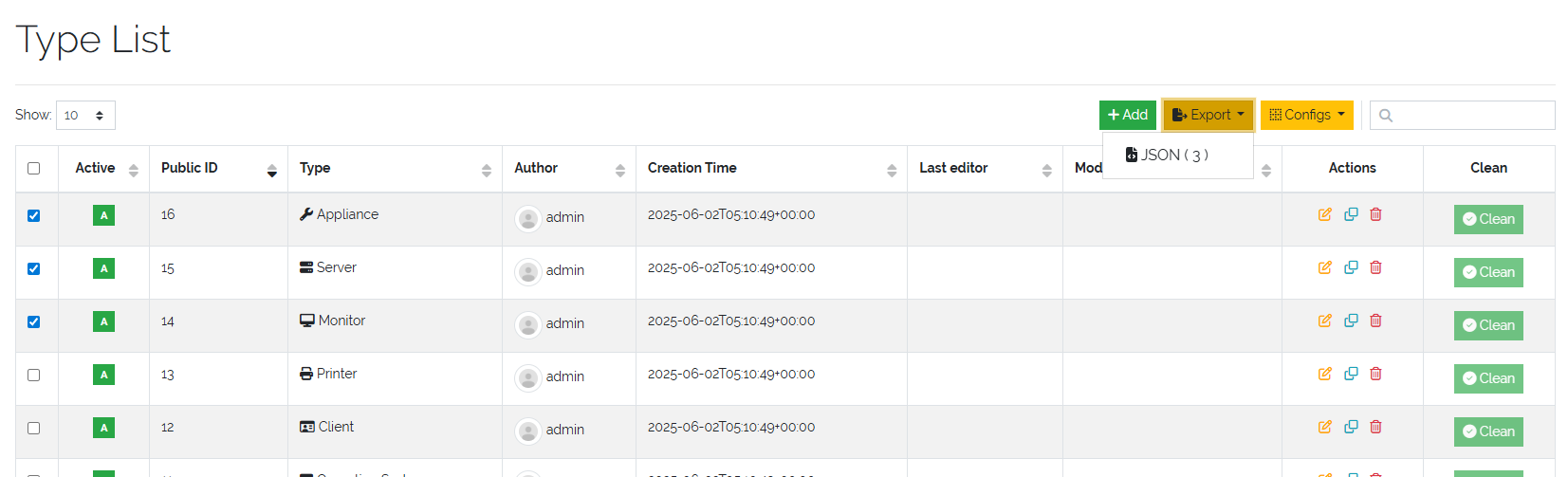
Picure: Multiple types selected to be exported in the type overview
Export Format
The export produces a JSON file containing the full schema definitions of the selected Type(s).
The structure of the exported file matches the format used for Type imports, making it ideal for use in migrations or automation.
Exporting Objects
Objects can be exported in various formats for reporting, processing, or re-importing. Currently supported formats include:
CSV
Microsoft Excel (XLSX)
JSON
XML
Exporting from the Object List
To export objects, navigate to a list of objects of a single type and click the Export button. If the object list contains multiple types, the export function will not be available.
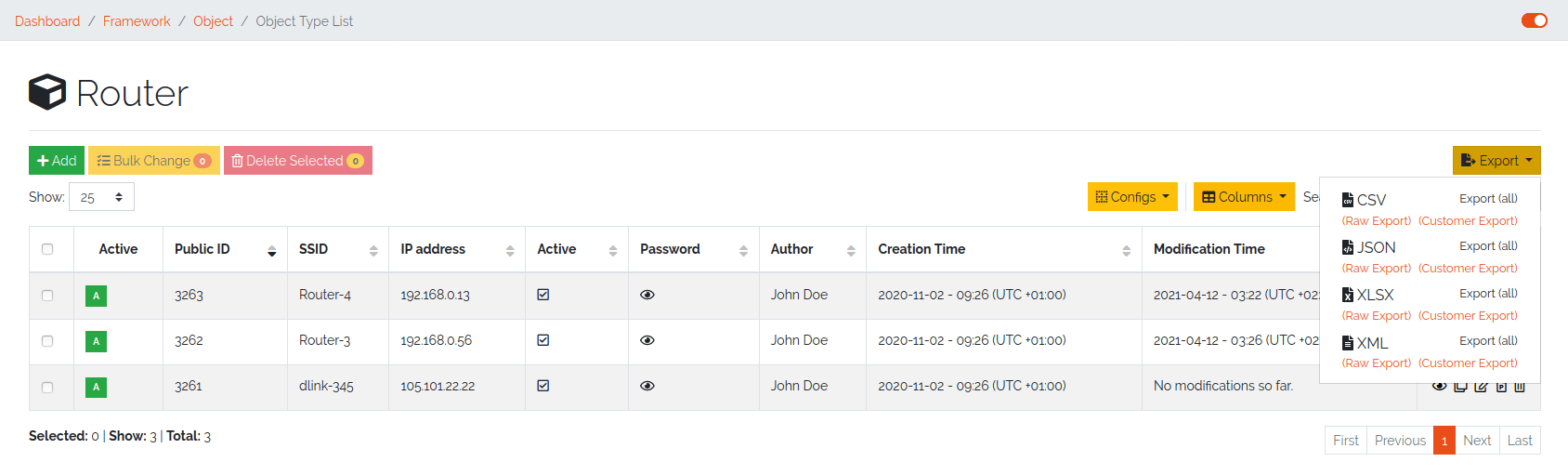
Picture: Export from object list overview
You can choose between two export modes:
Type |
Description |
|---|---|
Raw Export |
All fields of the selected objects are exported in their raw form. This is useful when the goal is to re-import updated data back into DataGerry with minimal formatting issues. |
Customer Export |
Only the fields selected by the user are exported. When using a quick filter in the object table, only the filtered objects are exported. Additionally, this mode exports rendered values instead of raw data, offering a more readable format for reporting or external use. |
Exporting from the Toolbox
Object export is also accessible from the main menu. Go to:
This method allows for direct access to the object export interface without navigating through the object lists.
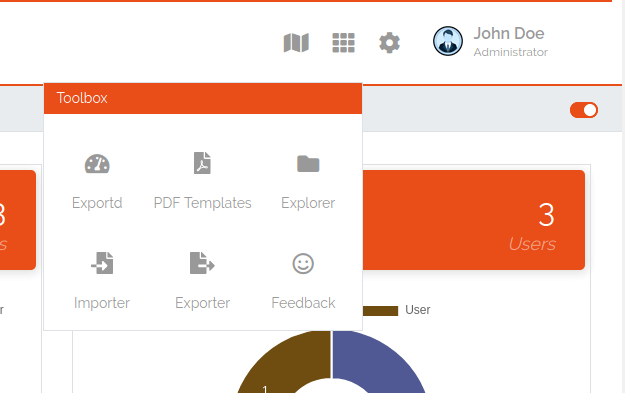
Picture: Export via Toolbox