Locations
Locations give users the possibility to structure their Objects in a tree like shape where the top elements are for example a country or a city and the sub elements are something like offices, rooms, servers etc. This will enhance the overview as well as give the possibility to quickly find an Object. The location tree can be found in the sidebar inside the “LOCATIONS”-Tab.

Picture: Locations tab in sidebar
Initialise location for a type
In order to display Objects in the Locations-Tab the corresponding Type needs to have assigned the Special Control Location in it’s type configuration. To do this open the type overview via Framework => Types in the top right corner and press the Edit-Icon from the Actions-column for the Type which should get the Locations functionality.
In the type configuration switch to the Content-Tab and on the left side in Special Controls drag the Location-Control inside the fields-area of a section.
Note
A Location-Control can only be assigned once to a Type

Picture: Location control in type configuration
The Location-Control contains two fields, “Label” and “Selectable as Location”. The “Label” is used in the object overview to identify the location field and the “Selectable as Location” defines if this Type can be used as a top location for other Objects. This is useful if you have a Type where you don’t want them to have any Objects below it, for example you have a Type Server and a Type Processor. The server is the top location for the Processor but the Processor can not be the top location for any other Types.
Configure location for object
After the Location-Special Control has been added to the Type (see previous step) switch to the object overview of an Object of this Type. The Location-Special Control added two fields to the Object. The first is the location selection named after the “Label” which was set in the type configuration. In this field the top location for this Object can be selected.The drop down list contains always the Root-Location which is the top most Location possible. Furthermore the drop down will also contain all Objects which have a Location selected (but not Objects which are directly below the current Object in the Location Tree).
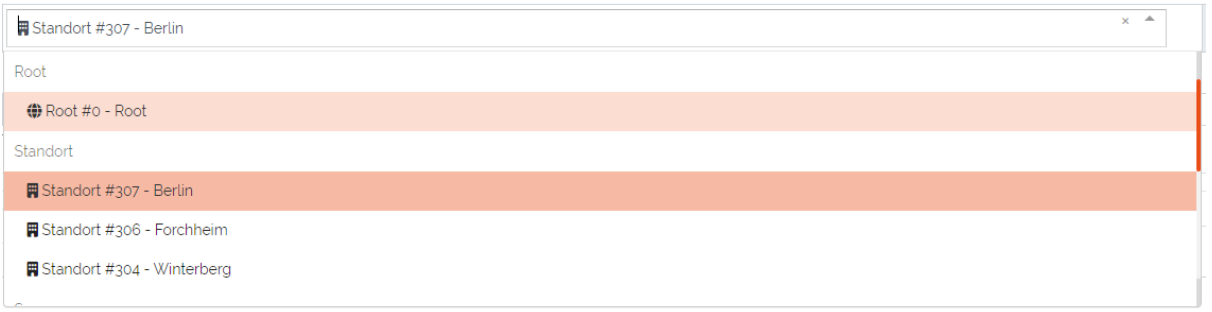
Picture: Selection of top location for current location
The second added field “Label in location tree” is used to set the name of this Object when displayed in the Location tree.

Picture: Added fields to Object from Location-Special Control
When the top location is selected and the Object is saved it will appear in the Locations-Tab in the sidebar. Each Object in the Locations-Tab can be clicked and will open the object overview of the selected Object.
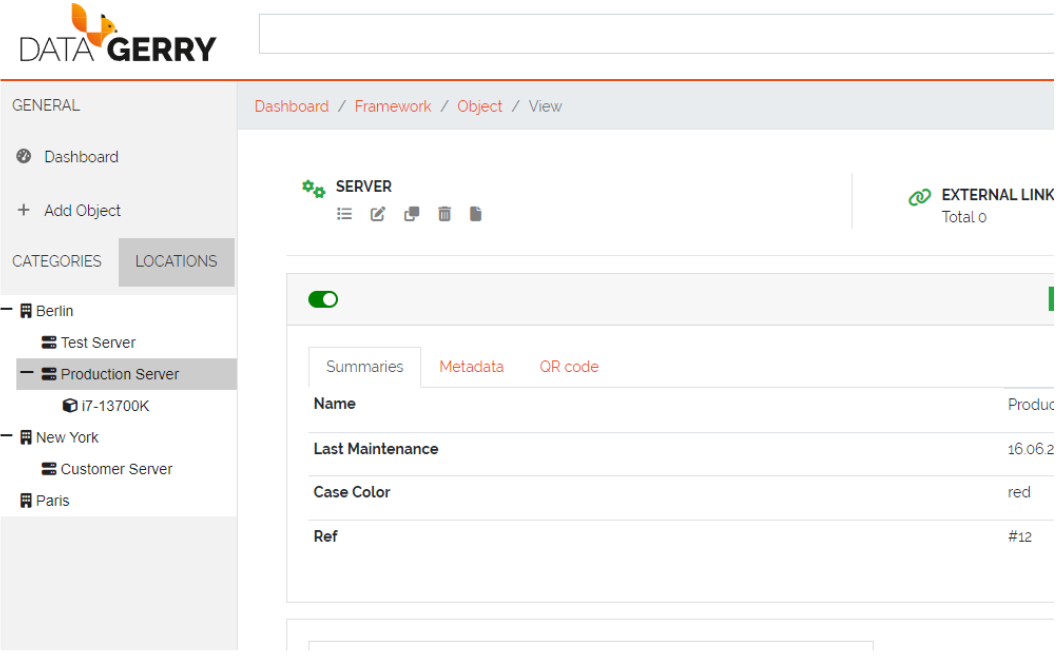
Picture: Locations in the Locations-Tab