Multi Data Sections (MDS)
Multi Data Sections enable users to create a group of fields (a section) within the Type Configuration, allowing the storage of multiple value sets. These value sets are displayed and managed in a table format.
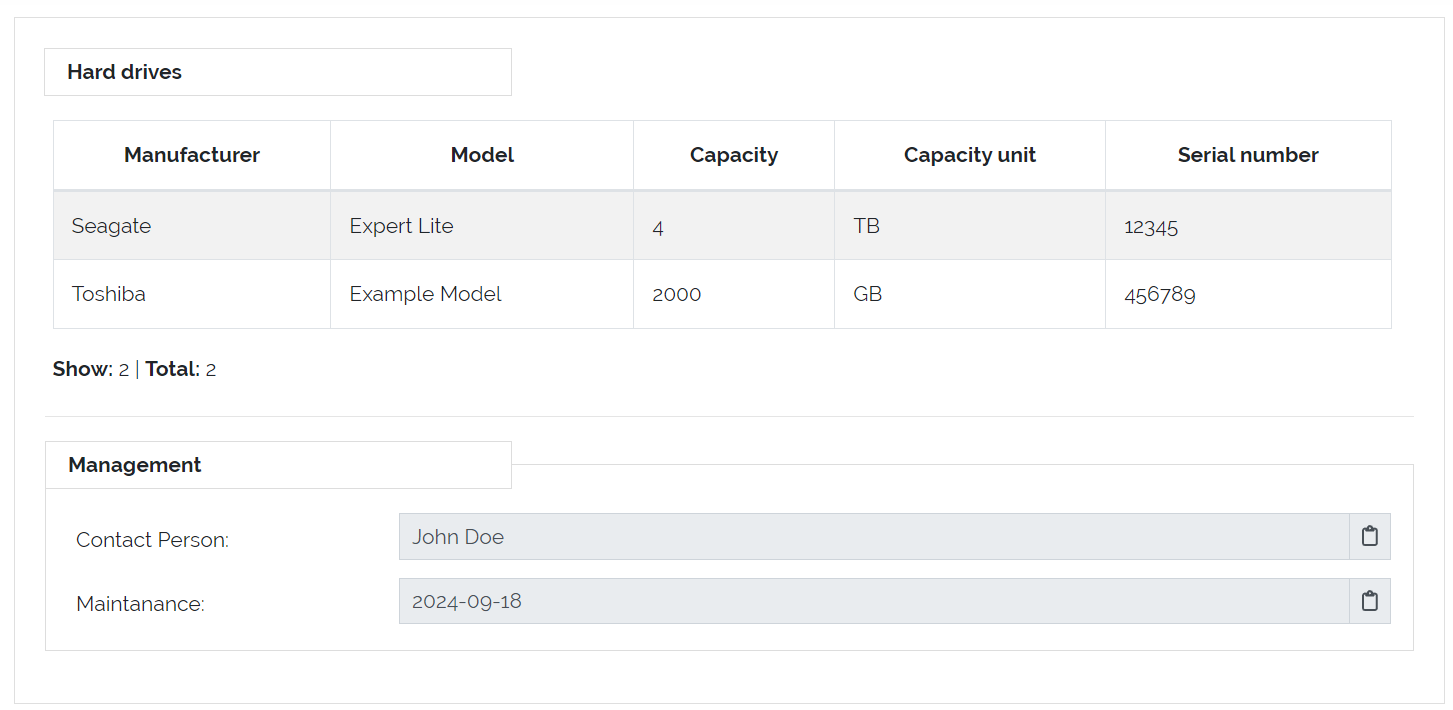
Picture: Multi Data Section vs Section
Warning
At the current state of development there are some restrictions to MultiDataSections of which some are intended and some will be implemented in later releases
Objects with MDS can only be exported/imported in JSON format
MDS entries cannot be used in the DocAPI
MultiDataSections are not displayed in bulk changes
MDS fields cannot be used as summary fields in the type configuration
Adding MDS to Types
Before we can add a MultiDataSection to a Type we first need to go to Framework => Types and open the Type Configuration of an existing Type or create a new Type. Inside the Type Configuration we need to switch to the Content - step where we will find the Structure Control “Multi Data Section” in the left sidebar. It can be dragged and dropped into the Type like all other elements of the sidebar.
It is possible to include multiple MDS in a single Type.
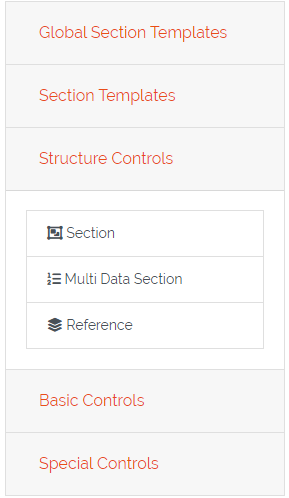
Picture: Structure Control - Multi Data Section
Adding Fields to MDS
After the MultiDataSection was dropped in the Type, we can drag and drop fields from the Basic and Special Controls (except “Location”). Fields which are dropped into a MultiDataSection will have an additional checkbox at the top (“Hide this field as column in object view/edit mode”). By checking this checkbox it is possible to remove fields from the table overview, which can be useful to keep the table compact by just displaying the relevant data. When creating or editing an entry for the MultiDataSection these fields will still be visible in the popup forms.
Once all necessary fields are added to the Multi Data Section, you can save the Type Configuration.
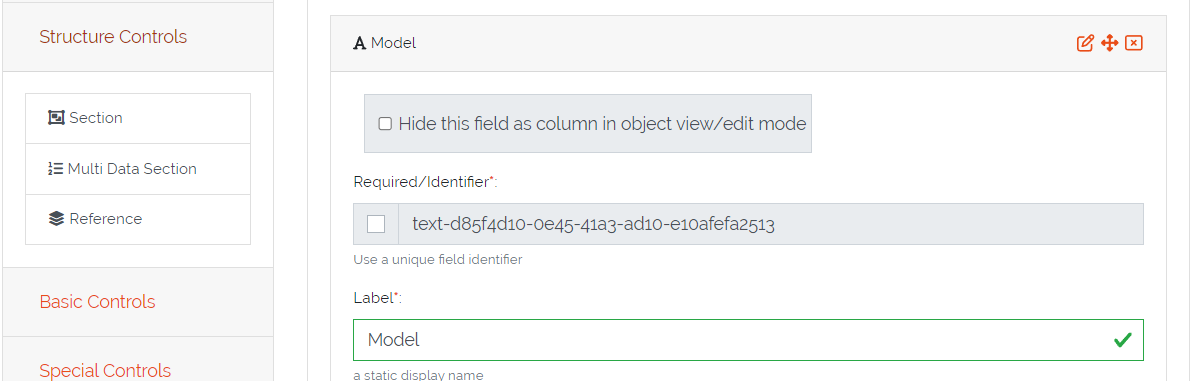
Picture: Adding fields to a Multi Data Section
Adding Objects with MDS
When creating a new Object of a Type with a MultiDataSection all fields (except the fields which were marked as hidden in the Type Configuration) of the corresponding MDS will be displayed as table headers with an additional header “Actions” where the entries can be modified. To add a new entry press the “+Add” - button in the top left corner of the table.
Warning
Saving: Changes to MultiDataSections are only saved in the backend when the Object itself is saved.
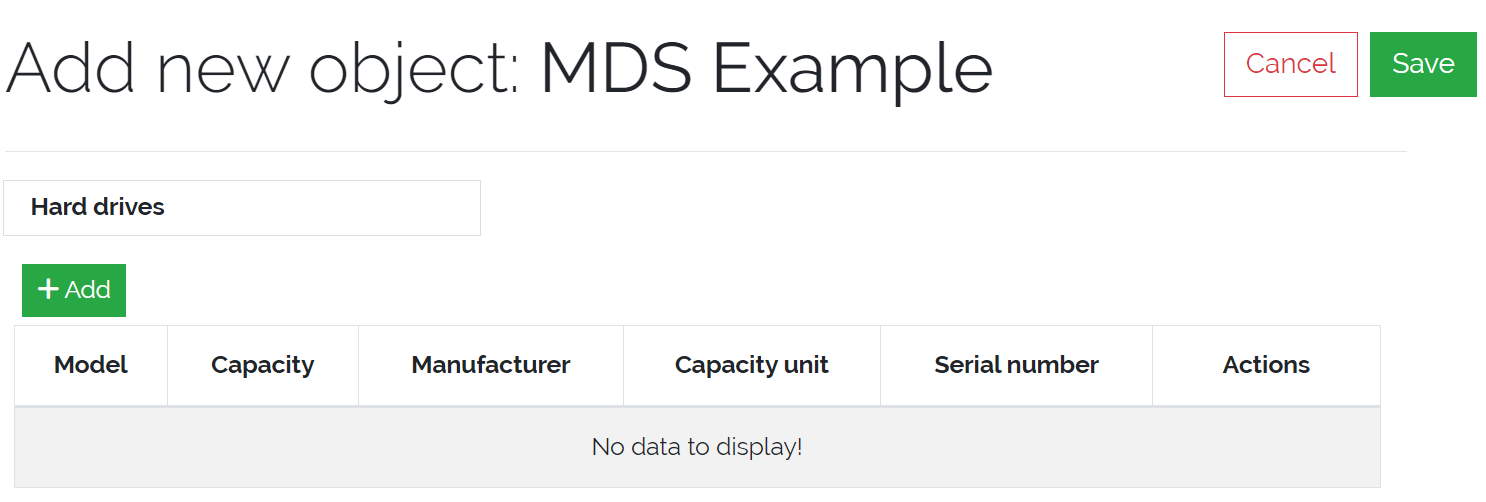
Picture: Adding objects with Multi Data Sections
A popup will be displayed where values for all fields (also the fields which are marked as hidden for the table overview) can be filled out. After pressing the “Add” - Button the entry will be created in the MDS-table. This process can be repeated to create multiple entries.
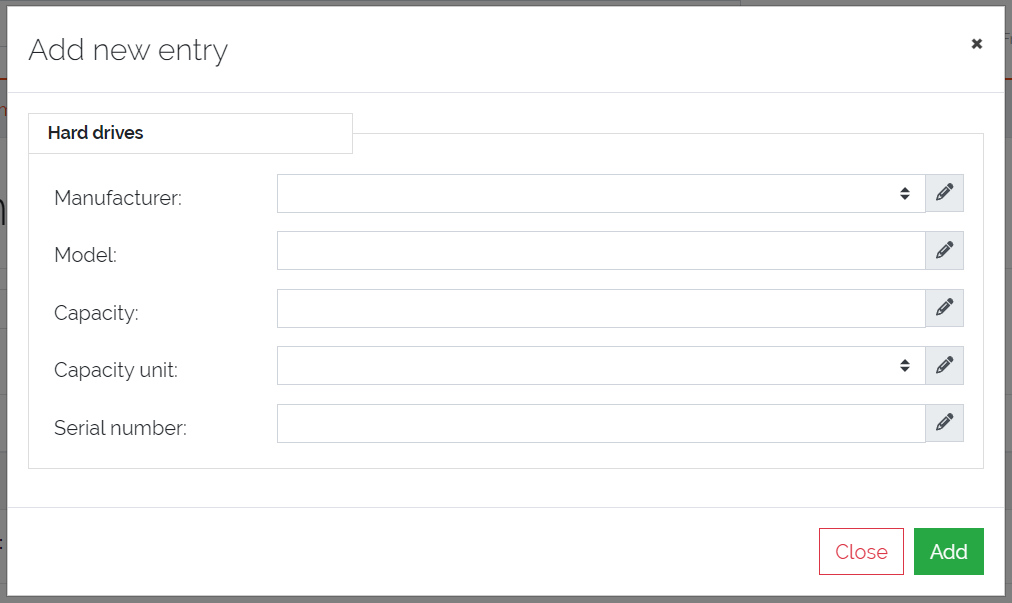
Picture: Adding an entry to a Multi Data Section
All created entries will be displayed in the table with pagination for more than 10 entries, and each entry will have “Actions” such as Preview, Edit, and Delete.
Note
Preview
Displaying the current values of the entry in a popup
Edit
The current values of the entry are loaded in a popup form where they can edited
Delete
The corresponding entry will be deleted (a confirmation popup will be shown)
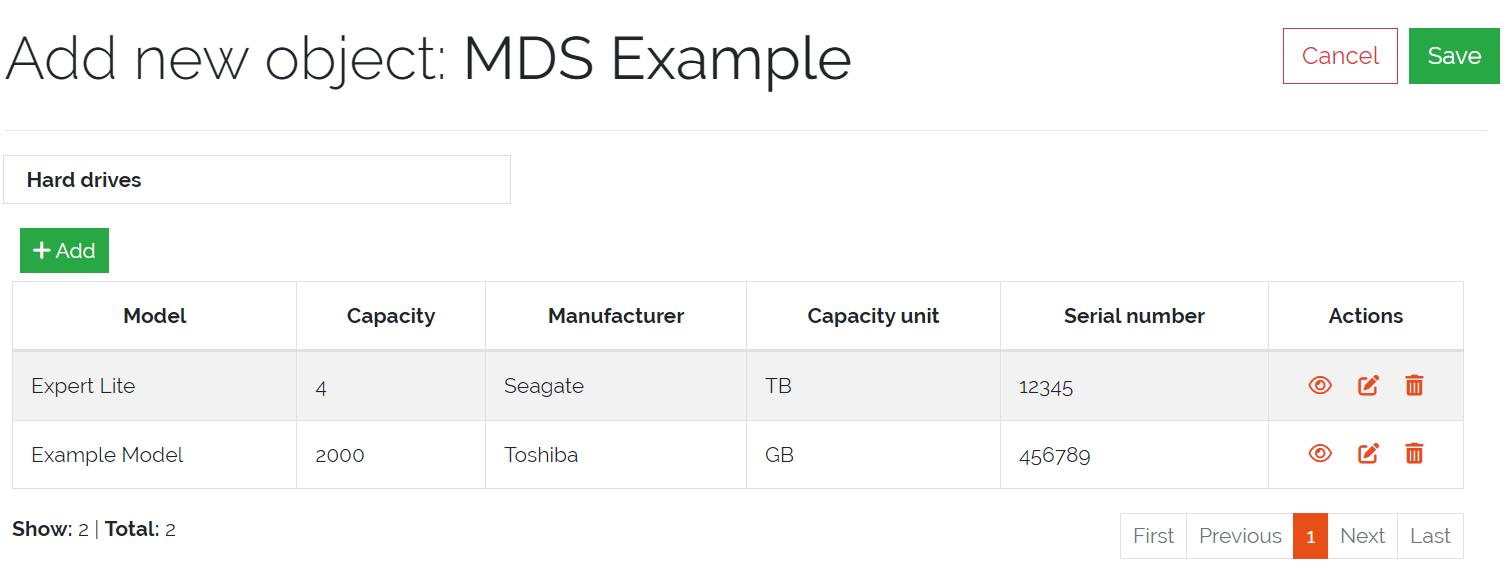
Picture: Multiple entries in a Multi Data Section