Cloud version
Sign up
To get started with the Cloud version of DataGerry, follow these steps:
Visit the sign-up page: Sign up to DataGerry
Fill out the registration form with your details.
Press the “Confirm Email” button to recieve a confirmation link
Check your email inbox and confirm your email address using the verification link.
Once confirmed, you’ll receive access to a free 14-day trial of DataGerry in the cloud.
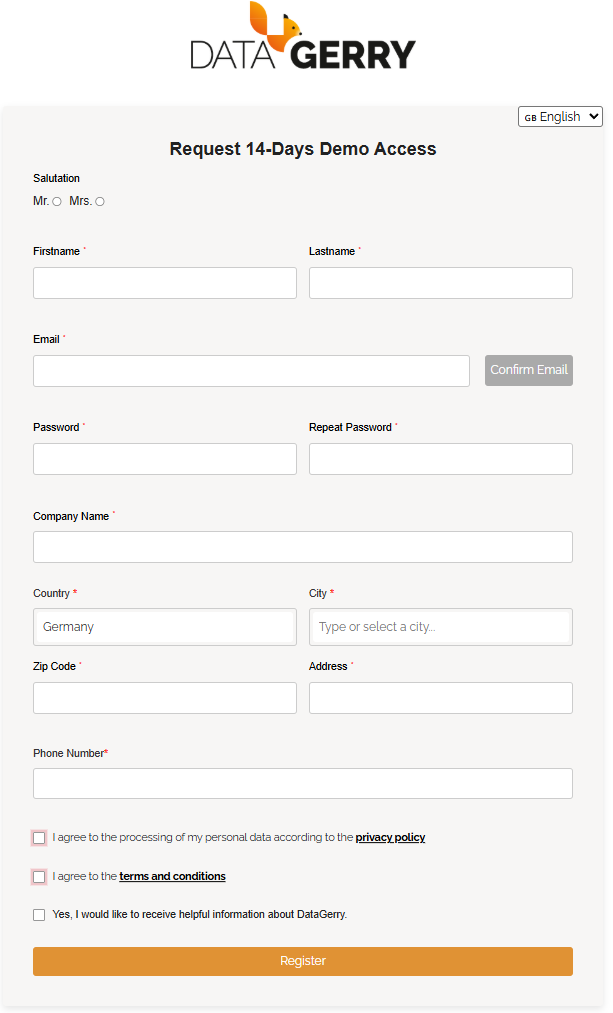
Picure: Sign up form
After signing up, you’ll be redirected to the login page of the Service Portal, where you can start exploring the platform immediately.
Note
The trial version includes all core features of DataGerry and allows you to evaluate the software without any installation effort.
Login
To access your DataGerry Cloud instance, follow these steps:
Open the login page: Login to Service Portal
Enter your email address and the assigned password used during registration.
Click Login to access your Service Portal.
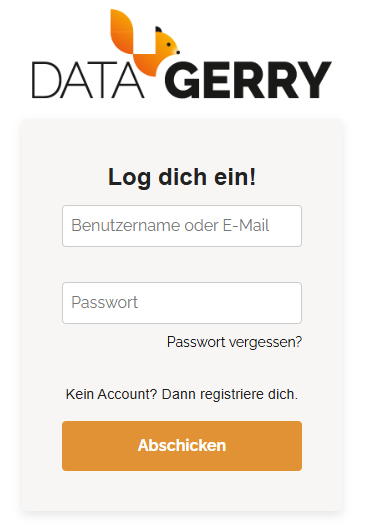
Picure: Login page for Service Portal
Note
Make sure to use the same email address you verified during the sign-up process.
Service Portal
The Service Portal provides an interface for managing cloud-based DATAGERRY subscriptions and configurations.
Subscription Management
After logging into the Service Portal, the Subscription section is loaded by default. This section lists all current subscriptions linked to your user account.
Each subscription represents an isolated environment with its own database. This ensures that data is not shared or mixed across subscriptions.
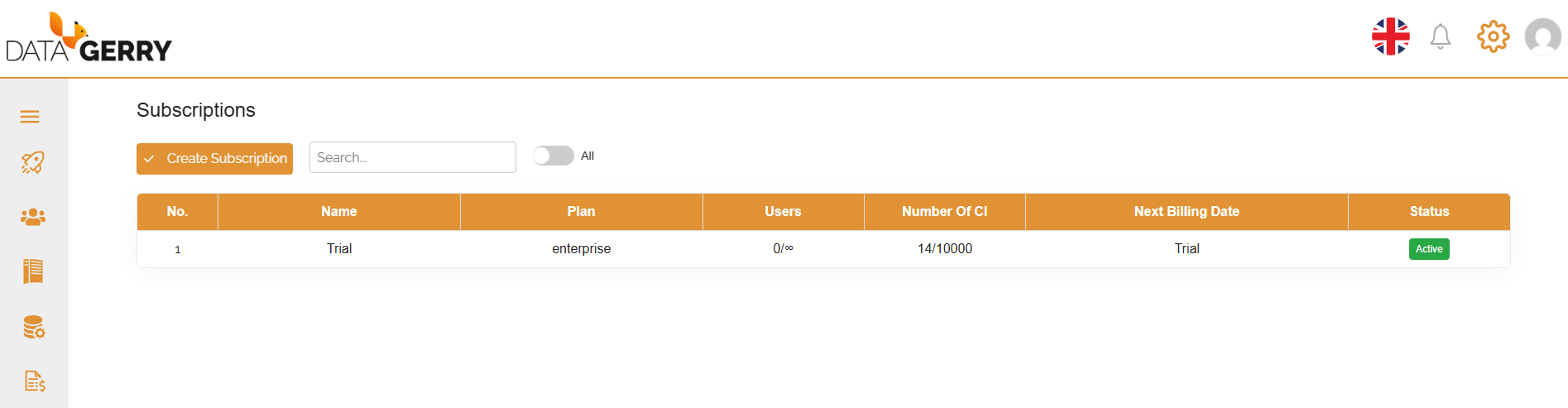
Picure: Subscriptions overview
Note
If your account is linked to multiple subscriptions, a dropdown selector will appear on the DataGerry login page. This allows you to choose the subscription you wish to access.
Creating a New Subscription
To create a new subscription:
Click the “Add Subscription” button above the subscription table.
Fill in the required details in the form.
Submit to initialize a new isolated instance of DataGerry in the cloud.
Each subscription is managed independently, allowing you to test, separate business units, or operate multi-environment setups with ease.
User Management
The Users section, accessible via the left sidebar in the Service Portal, provides an overview of all users associated with your account. Existing users are displayed in a table, including their email address and assigned roles.
Creating a New User
To add a new user:
Click the “Add User” button located above the user table.
Fill in the required fields in the user creation form.
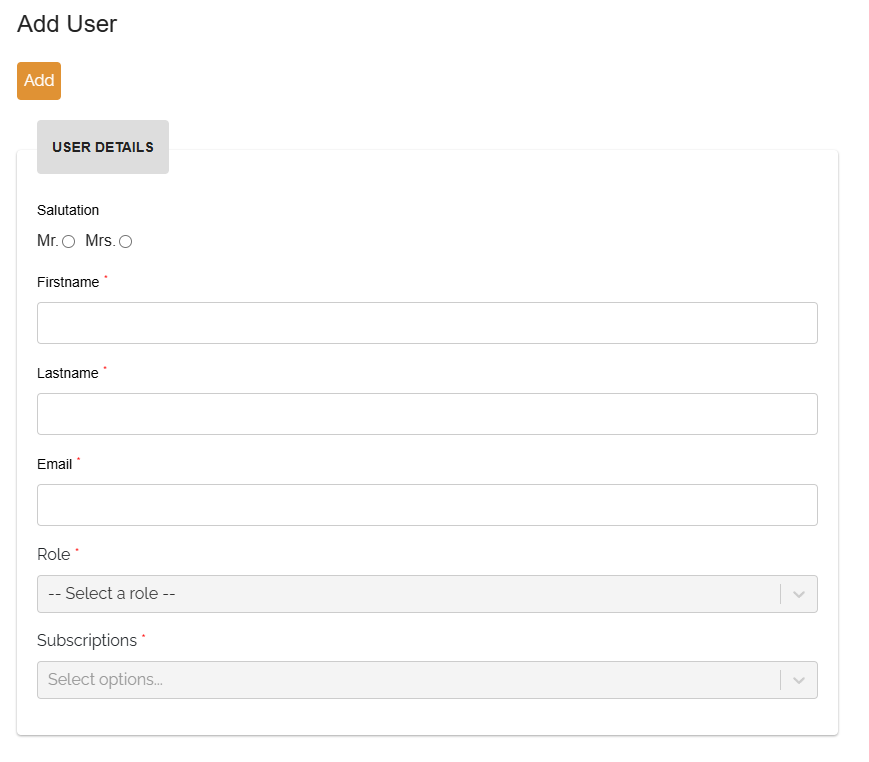
Picure: User creation form
The form includes the following options:
Role:
Admin: Grants full access to both the Service Portal and the connected DataGerry instance.Cloud User: Grants access to the DataGerry instance only, without permissions to use the Service Portal.
Subscriptions:
Assign the user to one or more active subscriptions.
The user will only be able to log into the DataGerry environments tied to the selected subscriptions.
Note
A user assigned the admin role has management privileges and can modify subscription settings, user access, and billing configurations.
Documentation & Cloud Access
In the left sidebar of the Service Portal, two quick access links are provided for convenience:
Documentation: Redirects to the official DataGerry documentation. This link helps users quickly access user guides, feature descriptions, and technical references.
Cloud Access: Opens the login page of the DataGerry Cloud instance. This allows users to easily switch from managing their subscription in the Service Portal to working within their assigned DataGerry environment.
Invoices
The Invoices section, accessible from the left sidebar of the Service Portal, provides an overview of all billing documents.
A table lists all invoices associated with the active account.
Invoices can be downloaded individually as PDF files for record-keeping or internal processing.

Picure: Invoices overview
Settings and Account Management
In the top right corner of the Service Portal interface, a settings section is available with several options:
Language Selection: Change the interface language.
Account Information: View and edit personal account details such as name, email, and password.
API Tokens: Manage API tokens, which are required to authenticate external access to the DataGerry API.
Logout: Safely log out of the Service Portal.
These settings help personalize the experience and enable secure integration with external systems.