DataGerry Assistant
The DataGerry Assistant provides an intuitive and guided setup to help you get started quickly. It launches automatically the first time you open DataGerry, but you can also start it manually at any time via Toolbox ⇒ Assistant in the top-right menu.
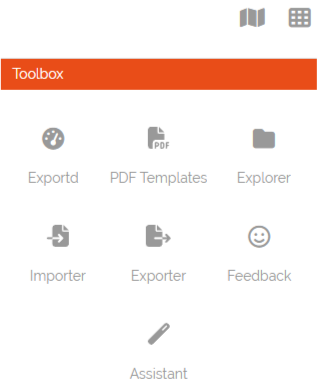
Picture: Assistant in Toolbox
Once launched, the Assistant presents you with a list of common branches typically used in CMDB structures (e.g., IT infrastructure, facilities). You may select one or multiple branches depending on your use case.
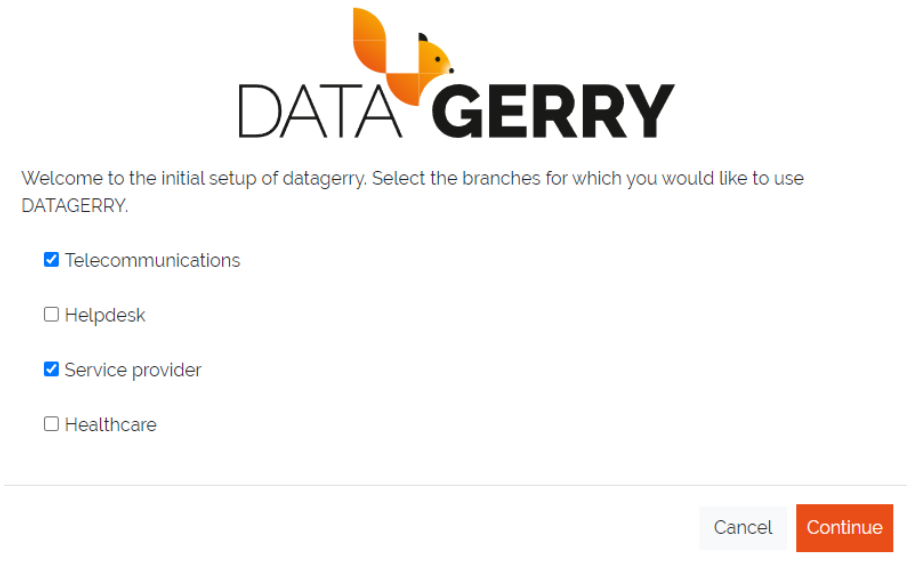
Picture: Branch selection
After choosing your branches, click Continue to proceed to the profile selection step. Profiles are collections of predefined Types commonly associated with the selected branches. You can refine your setup by enabling or disabling individual profiles.
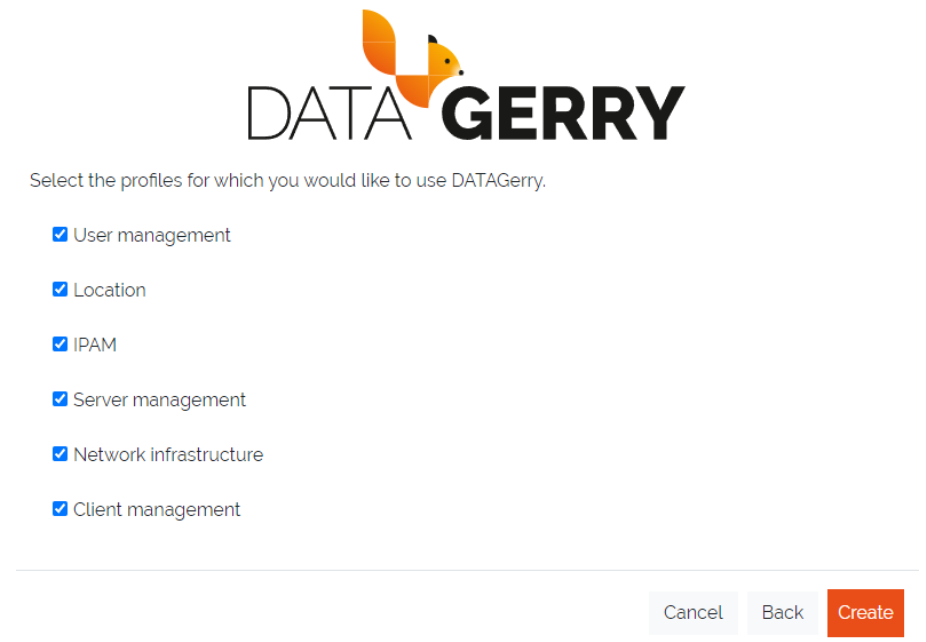
Picture: Profile selection
Clicking Create will automatically generate all Types defined in your selected profiles. Once the Types are created, you’ll be redirected to the Type Overview, which can also be accessed later via Framework ⇒ Types.
In the sidebar, your new Types will appear under Categories, organized according to the branches and profiles you selected.
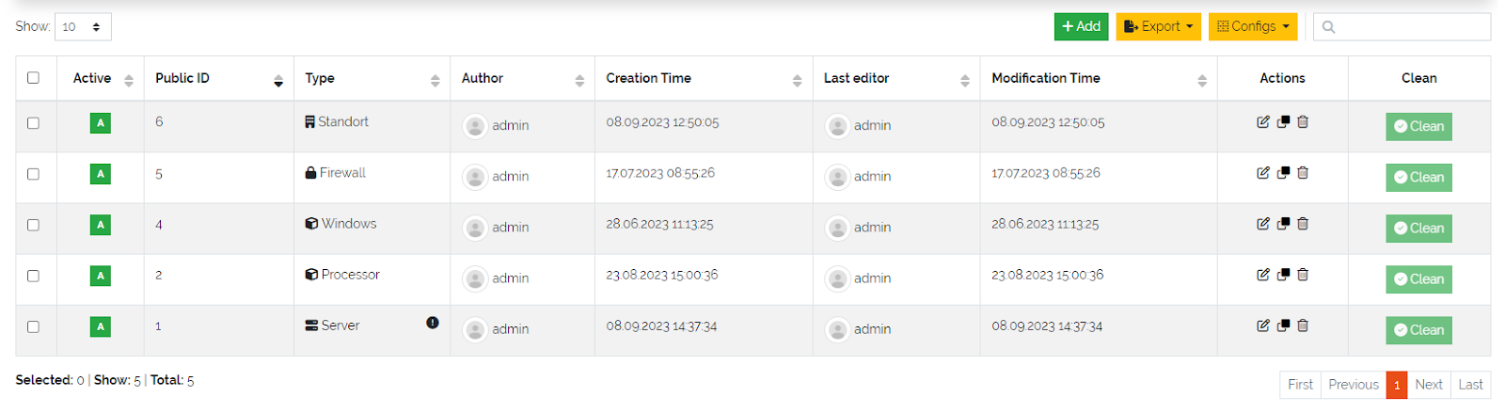
Picture: Type overview table
In the Type Overview table, you can explore and modify any generated Type by clicking the Edit icon under the Actions column. This gives you a closer look at how Types are structured within DataGerry.
You can also define your own Types from scratch using the + Add button above the table—tailoring the system precisely to your needs.
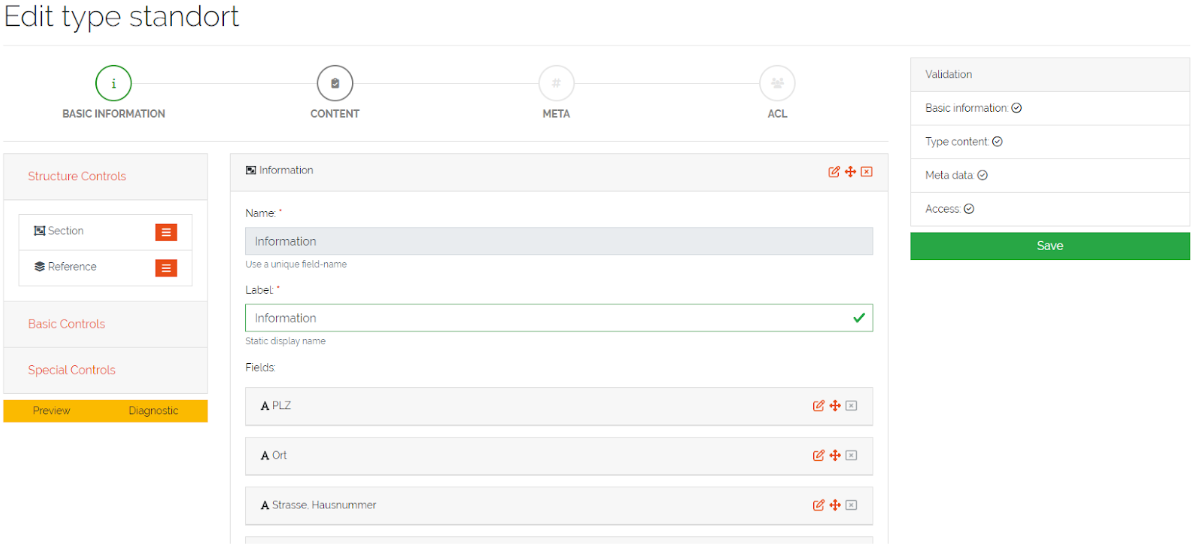
Picture: Type editing form